How to Manage Your Custom Progress Bar For YouTube Collection
This page covers everything about managing your progress-bar collection: search and filters, deleting single styles or whole collections, and syncing with the extension. Tips will help you quickly find themes for YouTube Theme and smoothly use YouTube Customize.
Open the Manager
Go to the Manage Progress Bars page. It connects to the Custom Progress Bar For YouTube extension, or automatically uses a local fallback if the extension is unavailable.
Core Actions
- Search - by name or tags (e.g., YouTube Theme, minimal, gradient).
- Filters - by platform (YouTube / all), type (gradient / image, etc.).
- Delete - single or bulk actions for quick cleanup.
- View - open the style page or go to Configure for YouTube Customize.
Open the Management Page from the Popup
Open the popup
Click the extension icon on the browser toolbar.
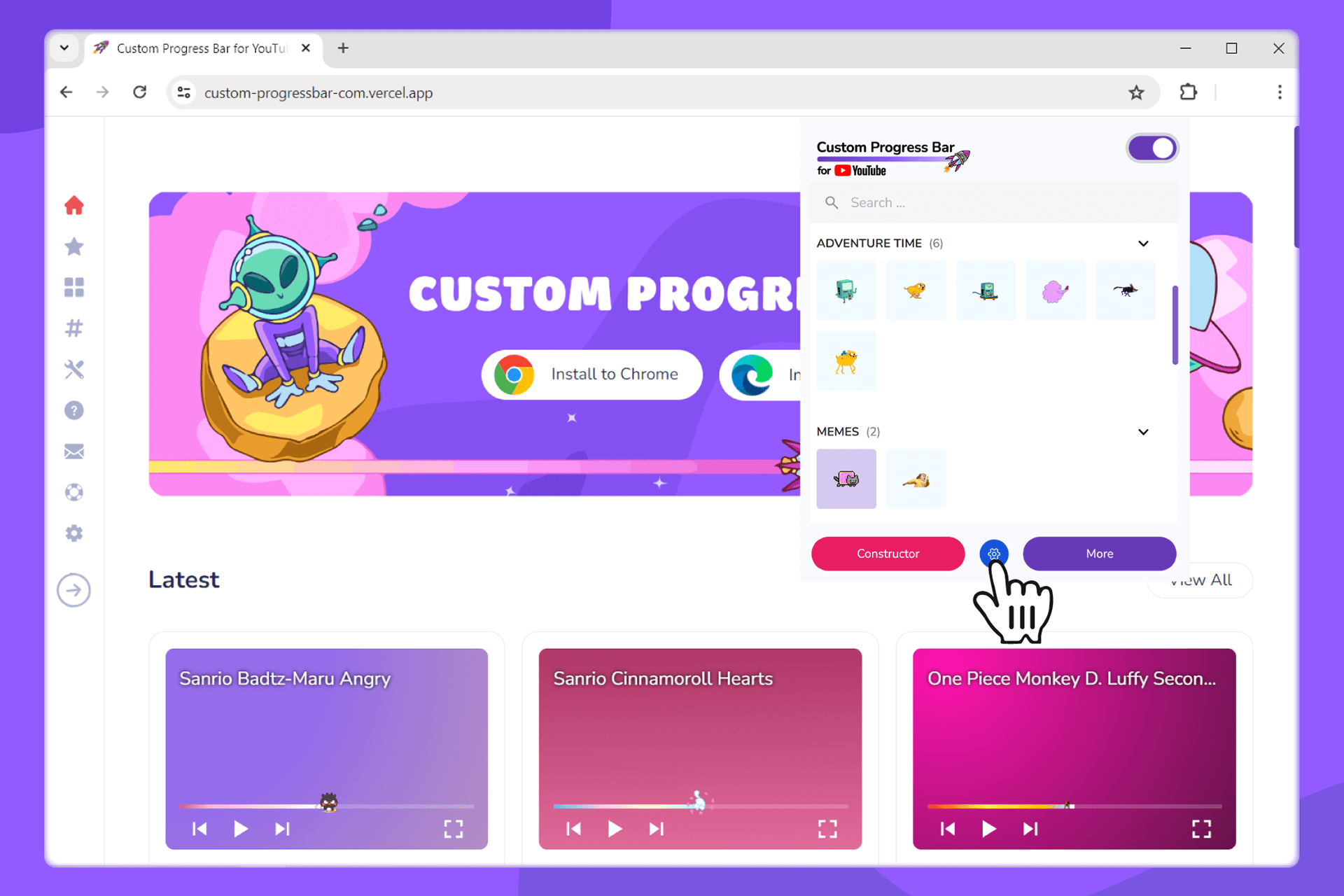
Go to Settings
Click Settings on the top bar - the collection management page opens.
Delete Individual Custom Progress Bars
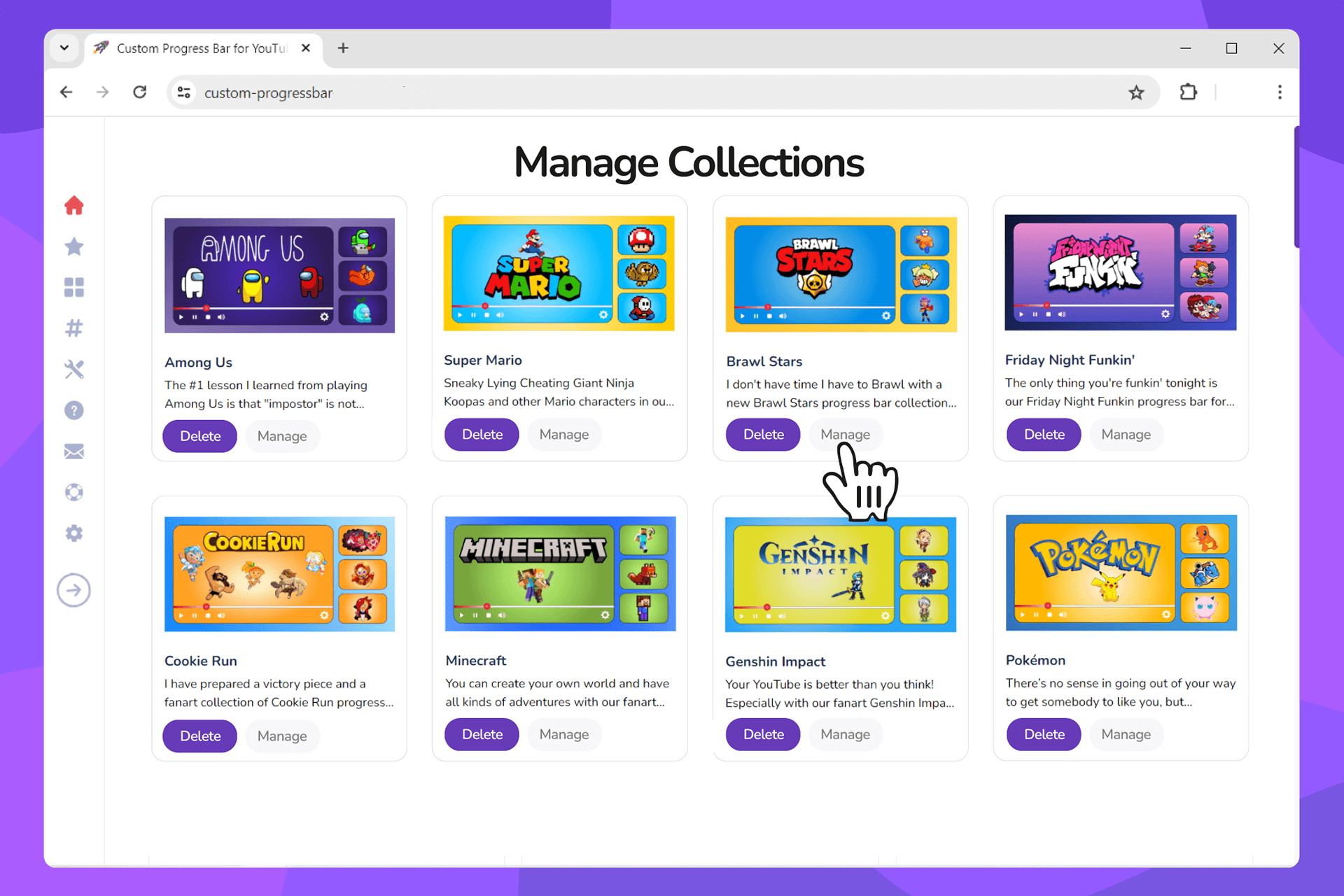
Open collection management
On the Manage Progress Bars page, click MANAGE next to the desired collection.
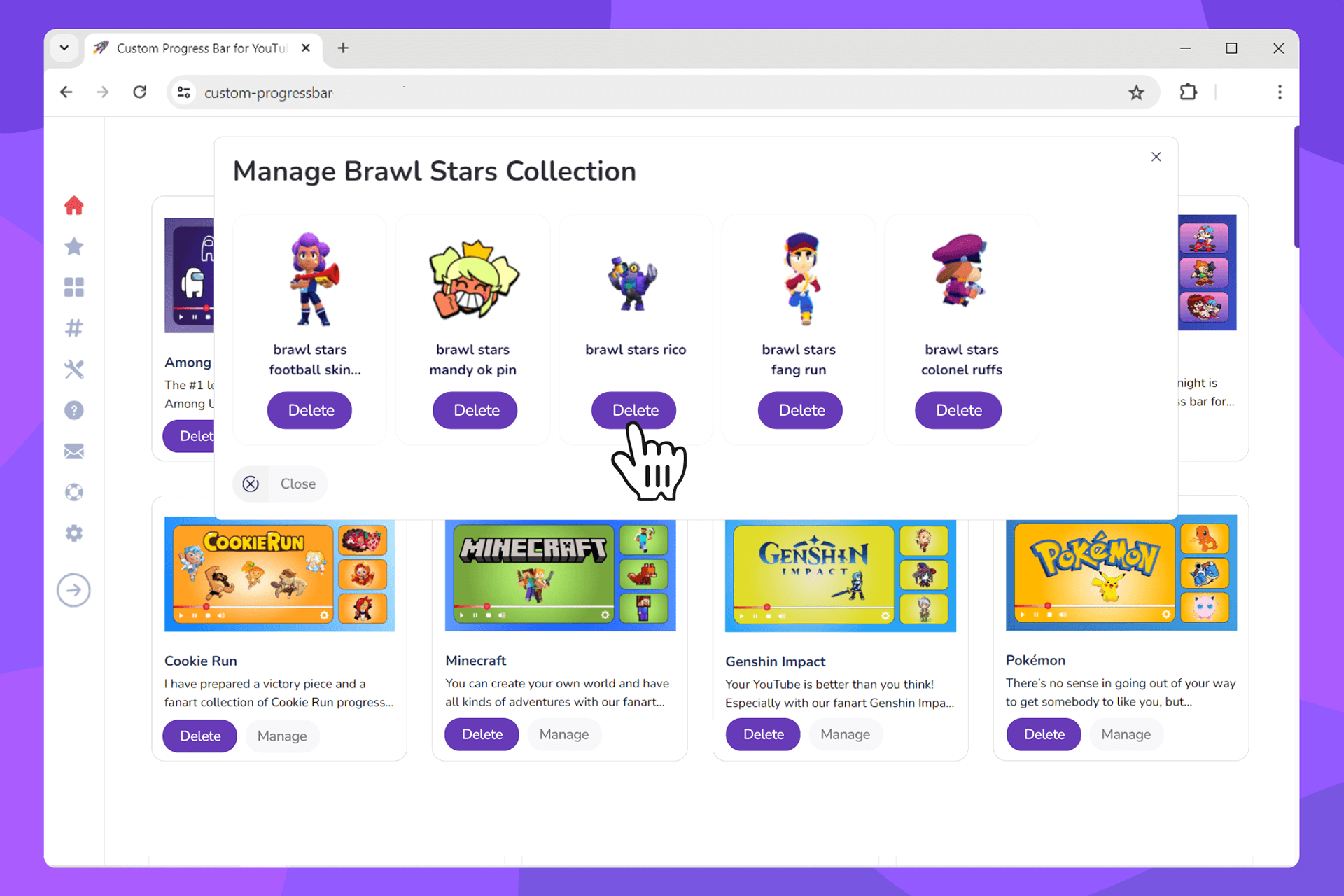
Delete an unwanted style
In the modal list, click DELETE next to the style name and confirm.
Delete a Collection of Custom Progress Bars
Open collection actions
In the collections list, select one and open the menu (… or MANAGE).
Delete the collection
Click Delete collection and confirm. All styles in this collection will be removed.

Sync with the Extension
Click Refresh on the management page to read the current list of collections and styles from the Custom Progress Bar For YouTube extension. If the extension is unavailable, a local fallback is used.
Tips
- Search + tags: give styles meaningful names/tags (e.g., youtube theme, contrast).
- Order: keep the most used at the top; archive or delete rarely used ones.
- Backup: periodically export settings or save presets in Configure.
If Something Went Wrong
- Make sure the extension icon is pinned and the extension is enabled.
- Refresh the page and retry; temporarily disable other extensions if you suspect a conflict.
- Check the service status (if available) or contact Support.
What’s Next
- Add more progress-bar styles for YouTube.
- Customize your own style in the Constructor (YouTube Customize).
- Add additional progress bars to the extension.