Custom Cursor Alternatives: Why Schools Block Extensions and Which Cursors You Can Install Instead
- 1Why do schools block Custom Cursor?
- 216 best Custom Cursor alternatives for Chrome
- 3Comparison of Custom Cursor alternatives
- 4Which Custom Cursor alternative to choose?
- 5What to do if Custom Cursor is blocked by the administrator?
- 6Will the alternatives work on every site?
- 7Conclusion
- 8All 16 alternatives - direct links
Does the ordinary mouse arrow feel boring? Want to replace it with a cute cat, a character from a favorite game, a bright neon design, or a pixel cursor? For that there is Custom Cursor - a popular way to personalize Google Chrome.
But there is one problem: on school computers this extension is sometimes blocked. Instead of the install button you may see a message about an administrator restriction, and sometimes Chrome does not allow opening the install page at all.
Why does this happen? Is Custom Cursor actually dangerous? And most importantly - what alternatives are there if the usual way to personalize the browser is unavailable?
In reality the choice is quite large. There are extensions with thousands of ready-made cursors, the ability to upload your own images, animated effects, pixel graphics, and unusual textures.
This review gathers 16 Custom Cursor alternatives for Google Chrome. We will look at their capabilities, features, and differences, and also explain why educational institutions may limit installing such extensions.
Why do schools block Custom Cursor?
Let us start with the main question. Why can you install Custom Cursor at home without particular problems, while on a school computer Chrome shows a blocking message?
Most often the reason is in the administrator settings of the educational institution.
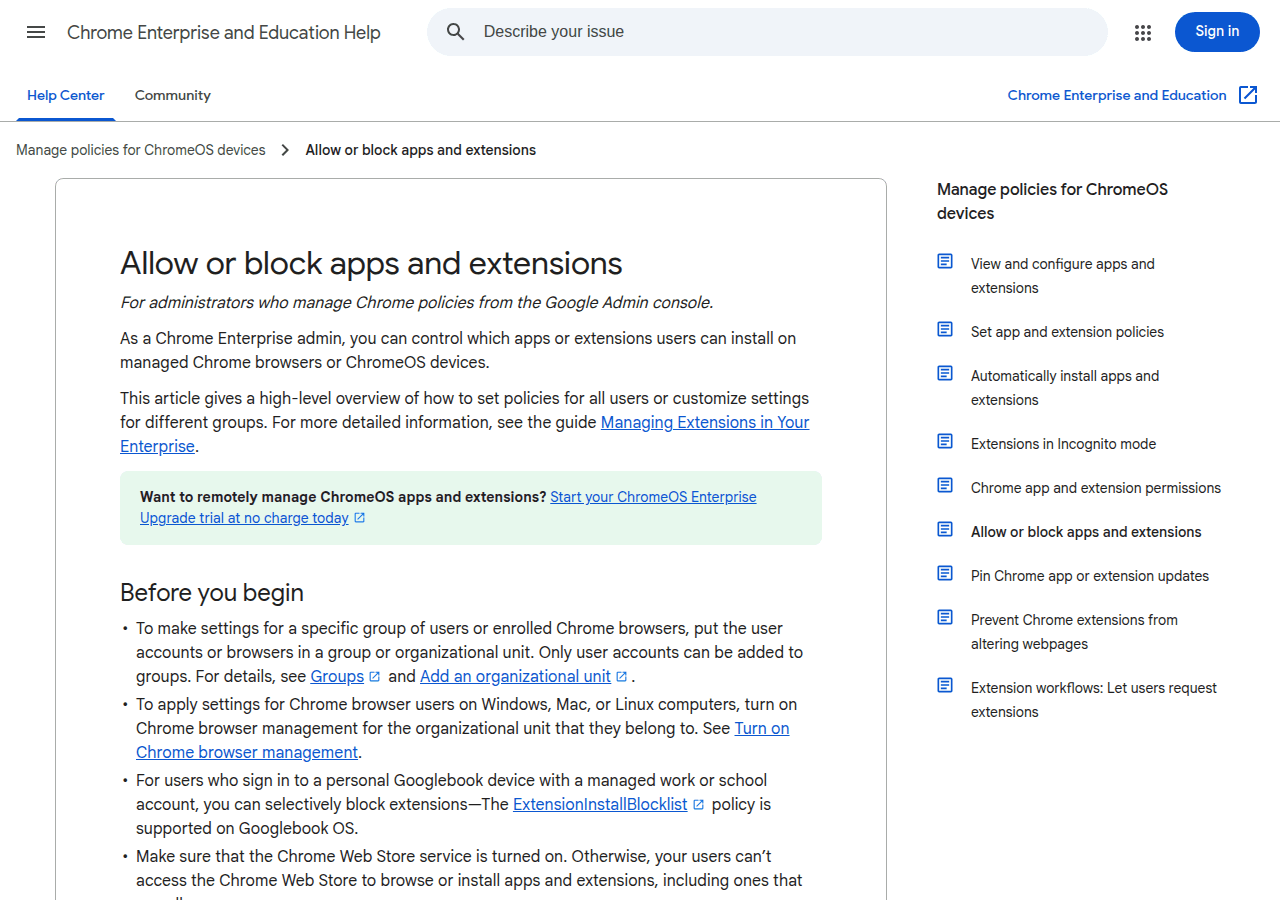
Schools may use managed Google accounts, Chromebooks, or computers with a centrally configured browser. The administrator decides which extensions students are allowed to install and which need to be blocked.
Google provides several management modes:
- allow all extensions except specific blocked ones;
- allow only extensions from a special list;
- block specific extensions;
- restrict installing entire categories;
- disallow extensions that request certain permissions;
- allow students to submit requests to install new extensions.
So Custom Cursor may be unavailable even when it is in the official Chrome Web Store.
1. Protecting school computers
One of the main reasons is security.
Every extension can request certain permissions. For example, some cursor-changing tools need access to web pages so they can replace the standard pointer with the selected design.
The administration may decide that students are only allowed to install extensions that have been reviewed or approved by the school.
That does not mean every cursor extension is dangerous. It simply means the educational institution may use a general security policy for all users.
2. Distraction from learning
The second possible reason is focus during lessons.
Cursors with animations, bright effects, characters, and trails can draw attention. For some people this is simply pleasant personalization, but the administration may consider such features unnecessary on learning devices.
This especially applies to extensions that add animations, particles, or decorative effects with every mouse movement.
At the same time there is no basis to claim that every school blocks Custom Cursor specifically because of distraction. The reason for a particular block depends on the institution's policy.
3. Control of installed programs and extensions
Educational institutions often use an allowlist of extensions. Students can install only the tools the administration has already approved.
If Custom Cursor is not on that list, Chrome may not allow installing it.
Sometimes the restriction applies not to one extension but to the entire Chrome Web Store. In that case other cursor extensions may be unavailable as well.
4. Permission limits
Cursor-changing extensions work with web page content. For that they may need permissions related to running scripts or changing how the page is displayed.
Google lets administrators block extensions that request certain permissions. So even if a specific Custom Cursor product is not blocked by name, it may still fail the general rules set by the school.
Does blocking mean Custom Cursor is dangerous?
No. The mere fact of blocking does not prove that the extension contains viruses or is malicious.
An administrator can block a program because of the educational institution's general policy, even if it is intended only to change how the cursor looks.
It is important to distinguish two things:
- The extension is blocked by the school - the administration does not allow installing or using it.
- The extension is considered dangerous - there are specific grounds to treat it as harmful.
These are not the same thing.
You can read more about managing extensions in the official Google help: Allow or block apps and extensions.
16 best Custom Cursor alternatives for Chrome
If you use your own computer or have permission from the administration to install additional extensions, you can try other tools.
All of the links below lead to the Chrome Web Store. These are separate products with different developers and features, not copies of one extension.
1. Cursor Helper - Custom Cursors
Large selection of designsInstall: Cursor Helper - Chrome Web Store
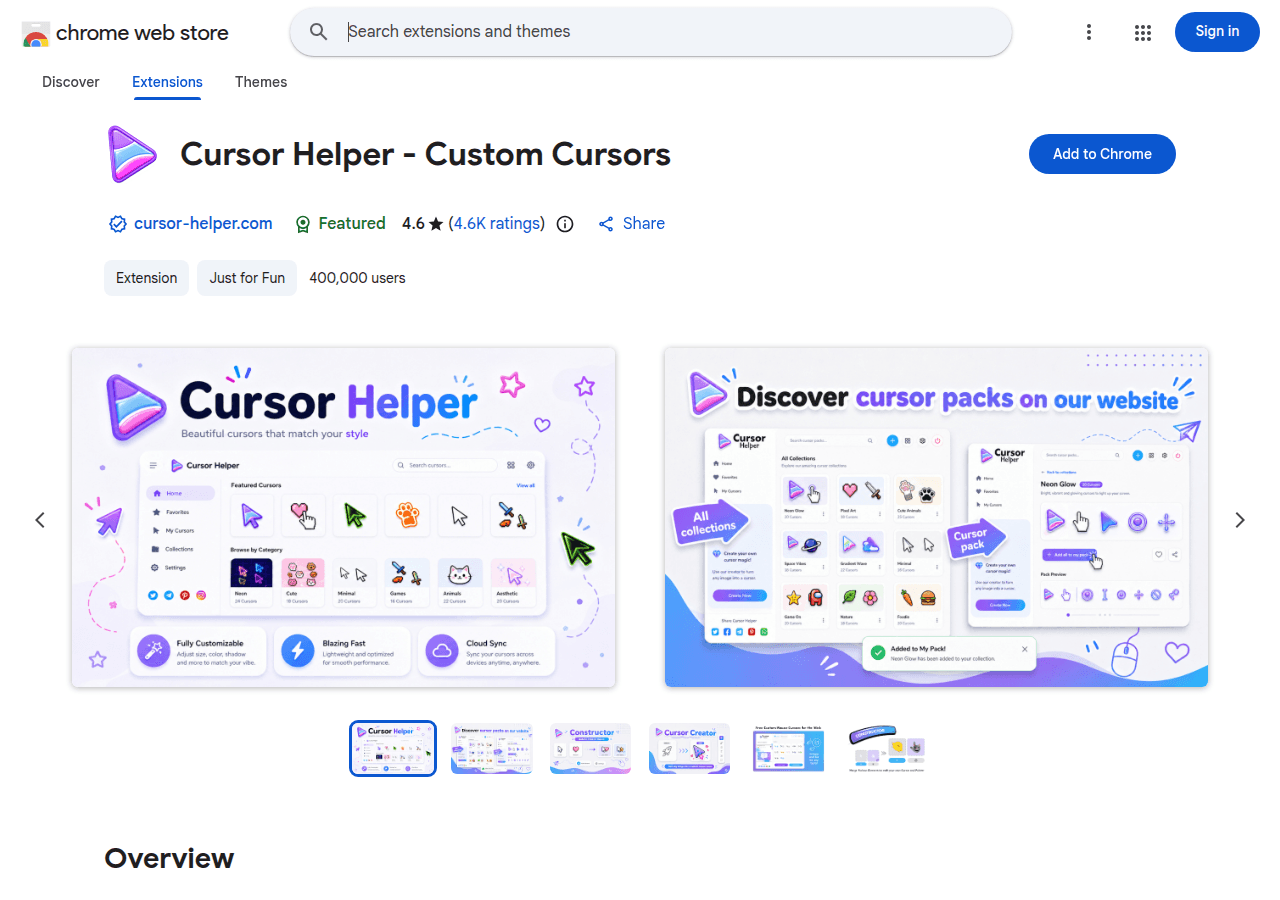
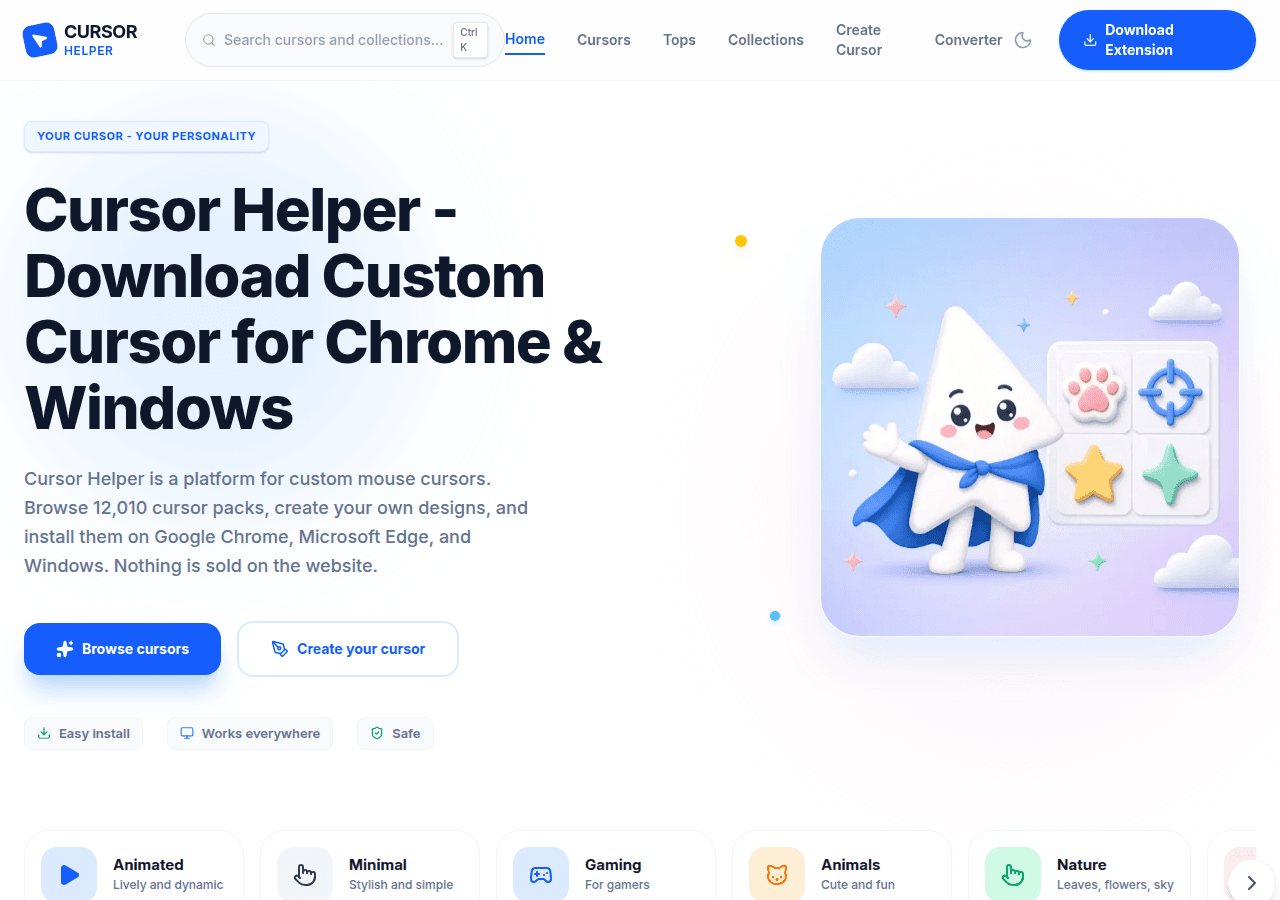
Cursor Helper is one of the most interesting options for anyone who likes changing the cursor look often.
In the library you can find different themed packs:
- cute characters;
- memes;
- anime;
- video games;
- animals;
- nature;
- neon designs;
- holiday cursors;
- minimalist options;
- retro graphics.
Especially interesting is the ability to create your own packs. The extension includes Cursor Builder, which lets you combine ready-made designs or use your own images.
You can choose one cursor for the arrow, another for the pointer, and create your own combination.
Best for: anyone who wants a large library, diverse collections, and the ability to create their own packs.
2. Cursor Custom
Install: Cursor Custom - Chrome Web Store
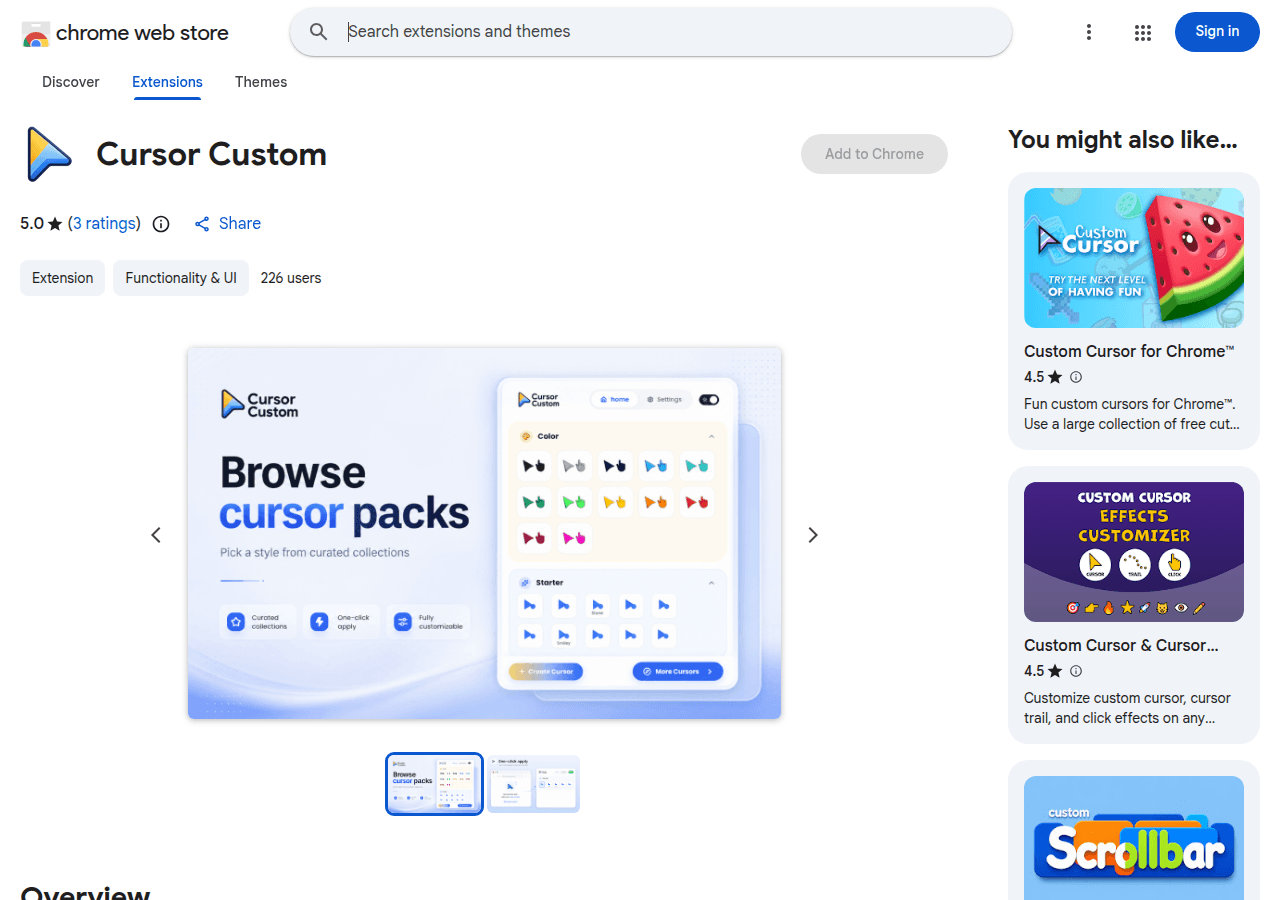
Cursor Custom is an option for anyone who wants to change the default arrow quickly without complex settings.
The extension describes ready-made collections:
- Color - cursors in different colors;
- Starter - popular starter designs;
- Holidays - holiday options.
It also provides fast switching between packs, turning the custom cursor off, and adjusting its size.
The developer notes that additional designs can be browsed on Custom Cursors Planet.
Best for: anyone who needs a simple extension with ready-made color and themed options.
3. Custom Cursor & Cursor Trails
Install: Custom Cursor & Cursor Trails - Chrome Web Store
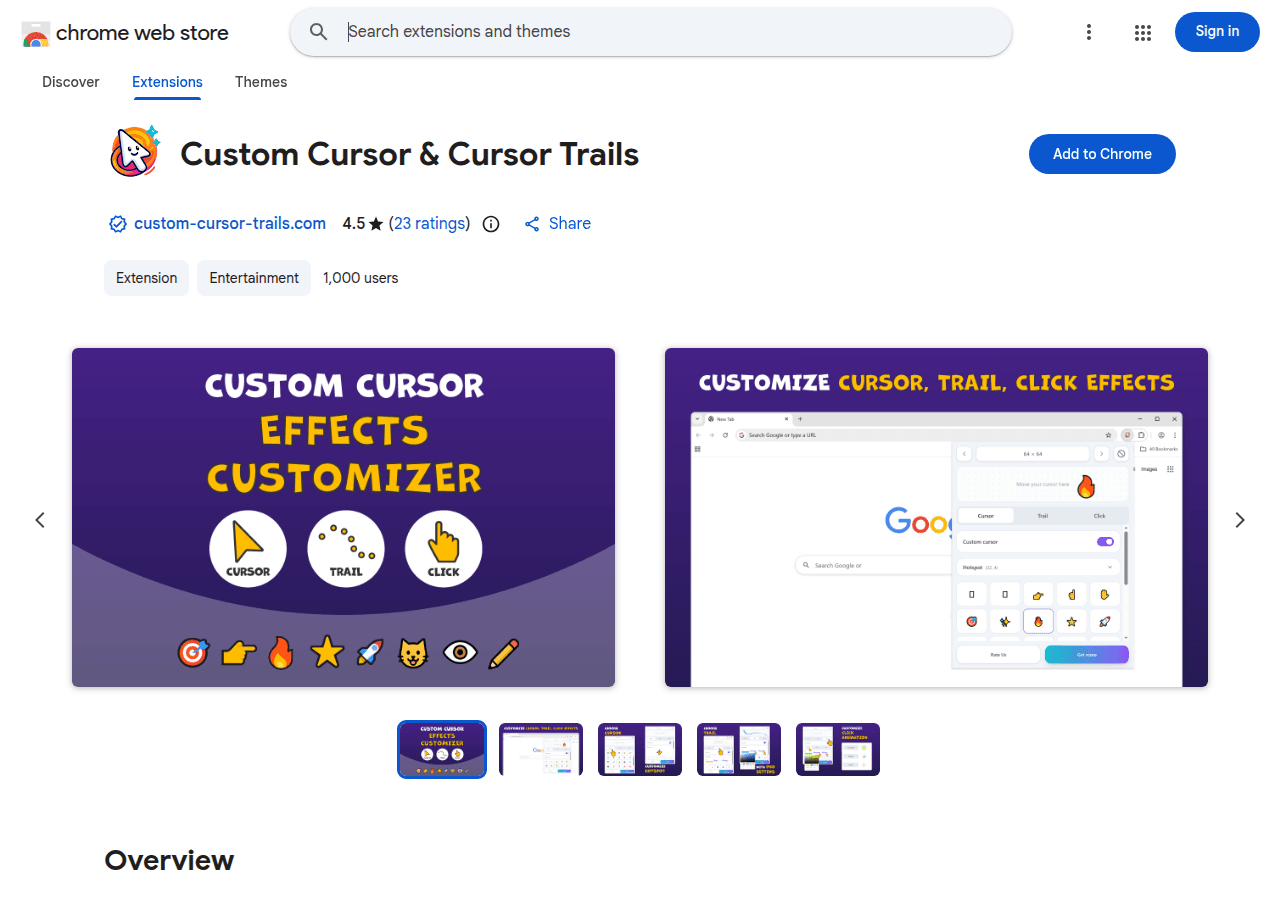
This option is interesting because it combines ordinary cursor changing with animated effects.
The extension card describes these capabilities:
- using ready-made designs;
- uploading your own images;
- animated trails behind the cursor;
- particles and light effects;
- click effects;
- settings for animation speed and density.
This is no longer just replacing the arrow - it is adding decorative effects to mouse movement.
Best for: anyone who likes animated cursors, particles, and click effects.
4. Custom Cursor Pro
Install: Custom Cursor Pro - Chrome Web Store
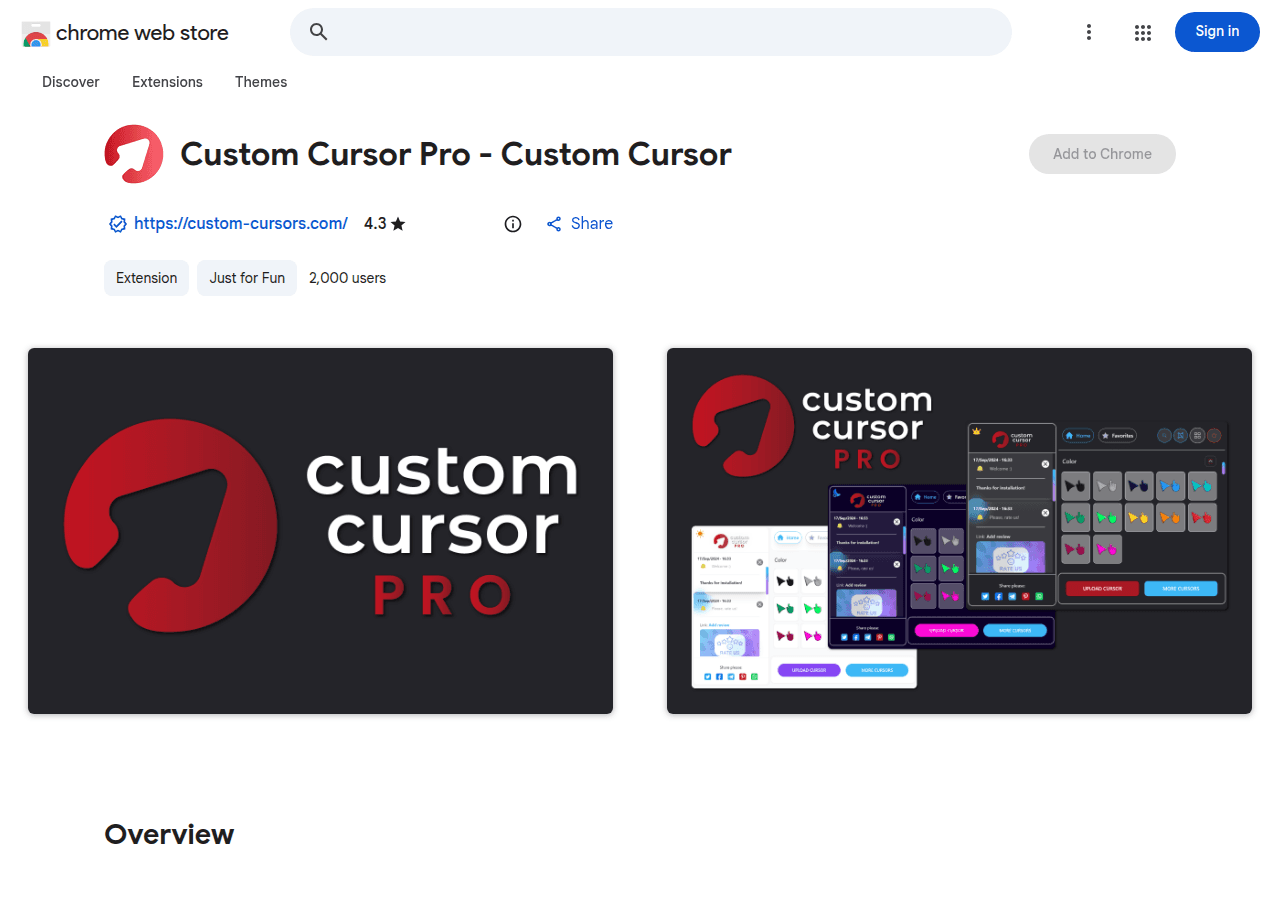
Custom Cursor Pro offers a library of designs that includes options themed around games, cartoons, anime, memes, and other popular directions.
The extension description also mentions two tools:
- Creator - for creating a cursor from your own image;
- Constructor - for combining elements and creating your own pack.
So the user can not only install a ready-made design but also try making their own.
Best for: anyone who likes animated designs and wants to experiment with their own cursors.
5. Custom Cursor App
Install: Custom Cursor App - Chrome Web Store
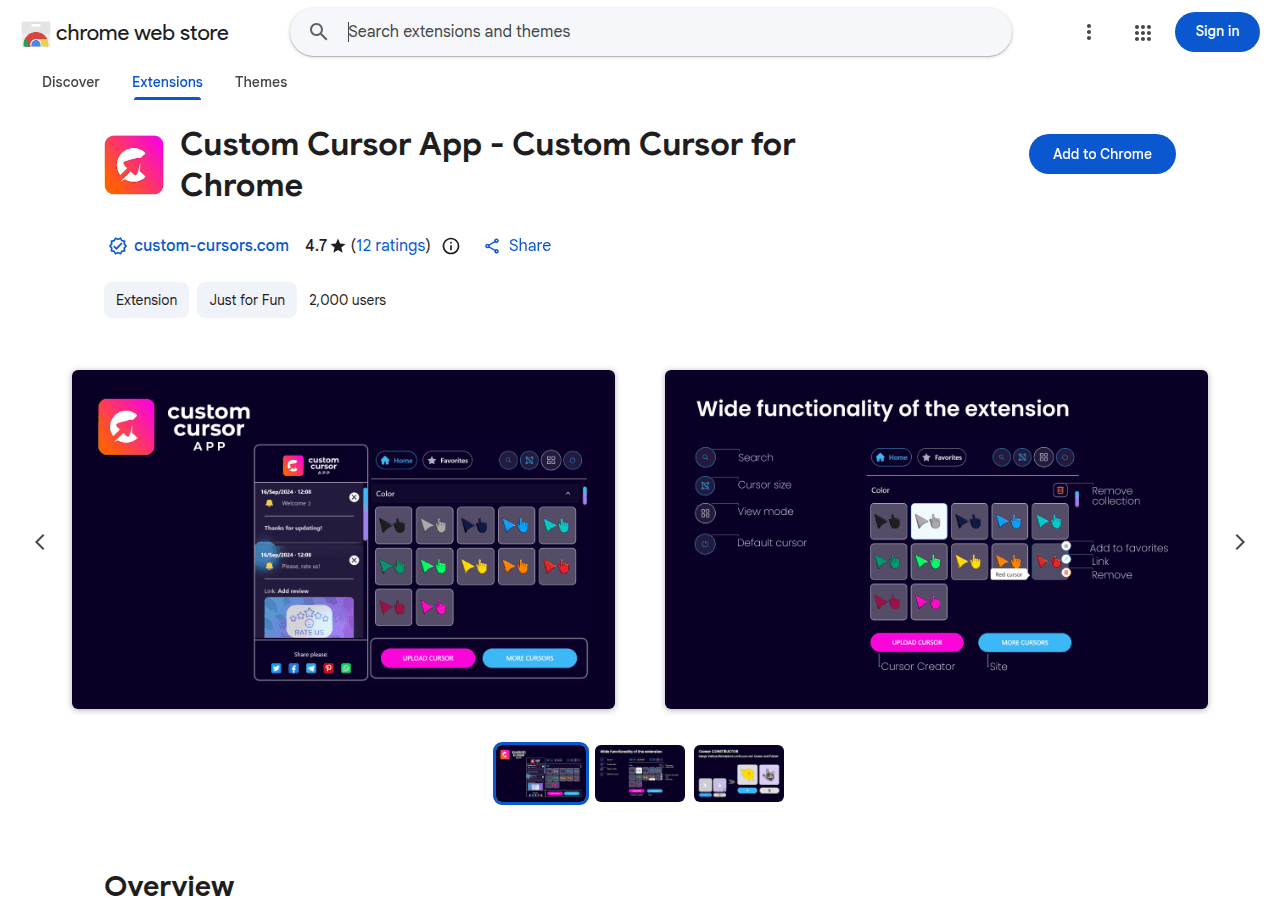
This is another alternative for anyone who likes large libraries of designs.
The extension card mentions these themes:
- Anime;
- Cute;
- Fantasy;
- Gaming;
- Cartoon;
- Memes;
- Minimal.
The developer describes the library as a large collection of ready-made packs for browser personalization.
Best for: anyone looking for cursors from anime, games, cartoons, and cute characters.
6. Navix Cursors
Install: Navix Cursors - Chrome Web Store
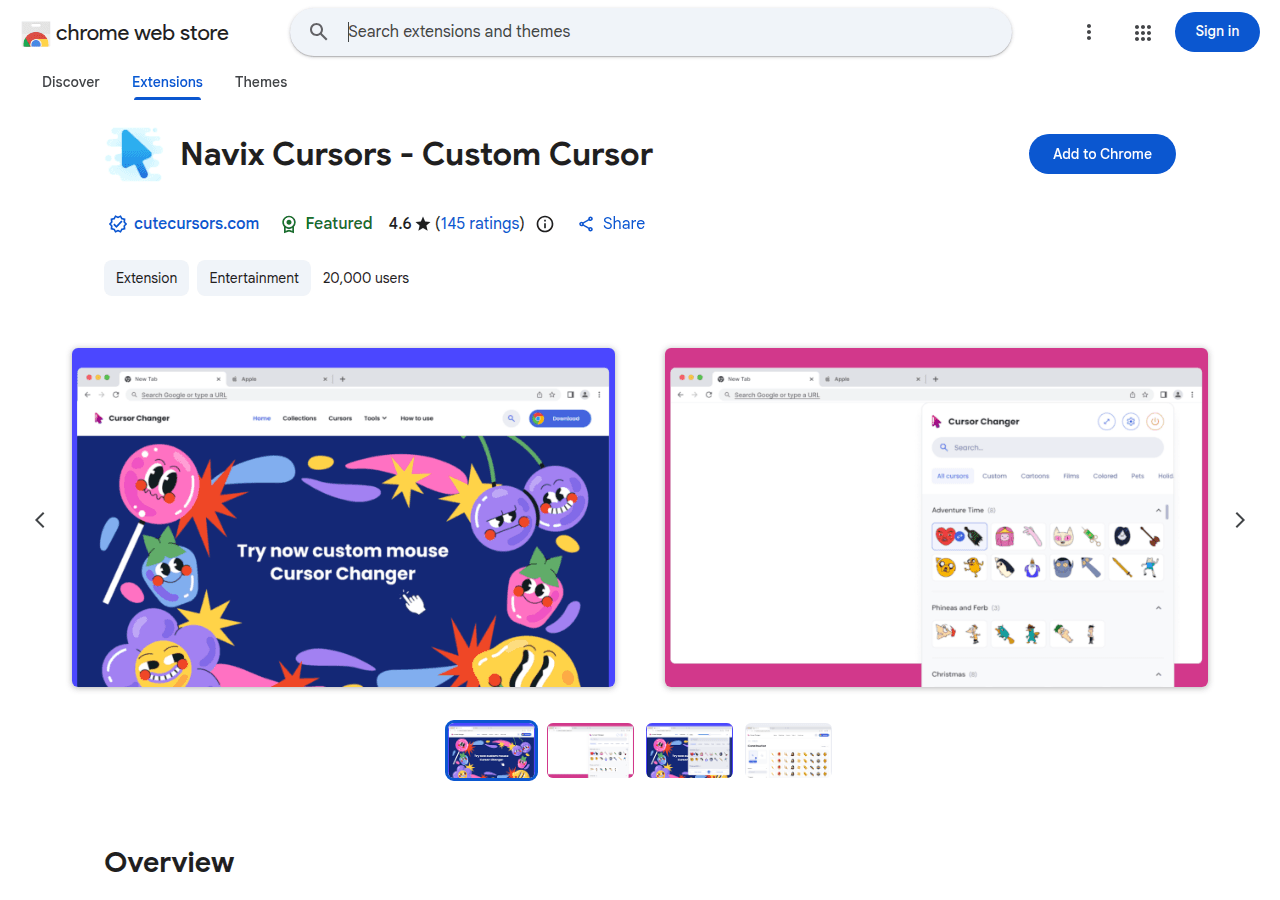
Navix Cursors is an extension connected with the cutecursors.com site.
In it you can browse different packs, find designs by category, and save favorite options.
Among the themes mentioned in the Chrome Web Store card:
- games;
- cartoons;
- anime;
- memes;
- gradients;
- animals;
- seasonal designs.
The developer also notes the ability to upload your own images and create personalized packs.
Best for: anyone who wants to combine ready-made collections with the ability to use their own images.
7. Cursoria - Custom Cursors
Advanced settingsInstall: Cursoria - Chrome Web Store
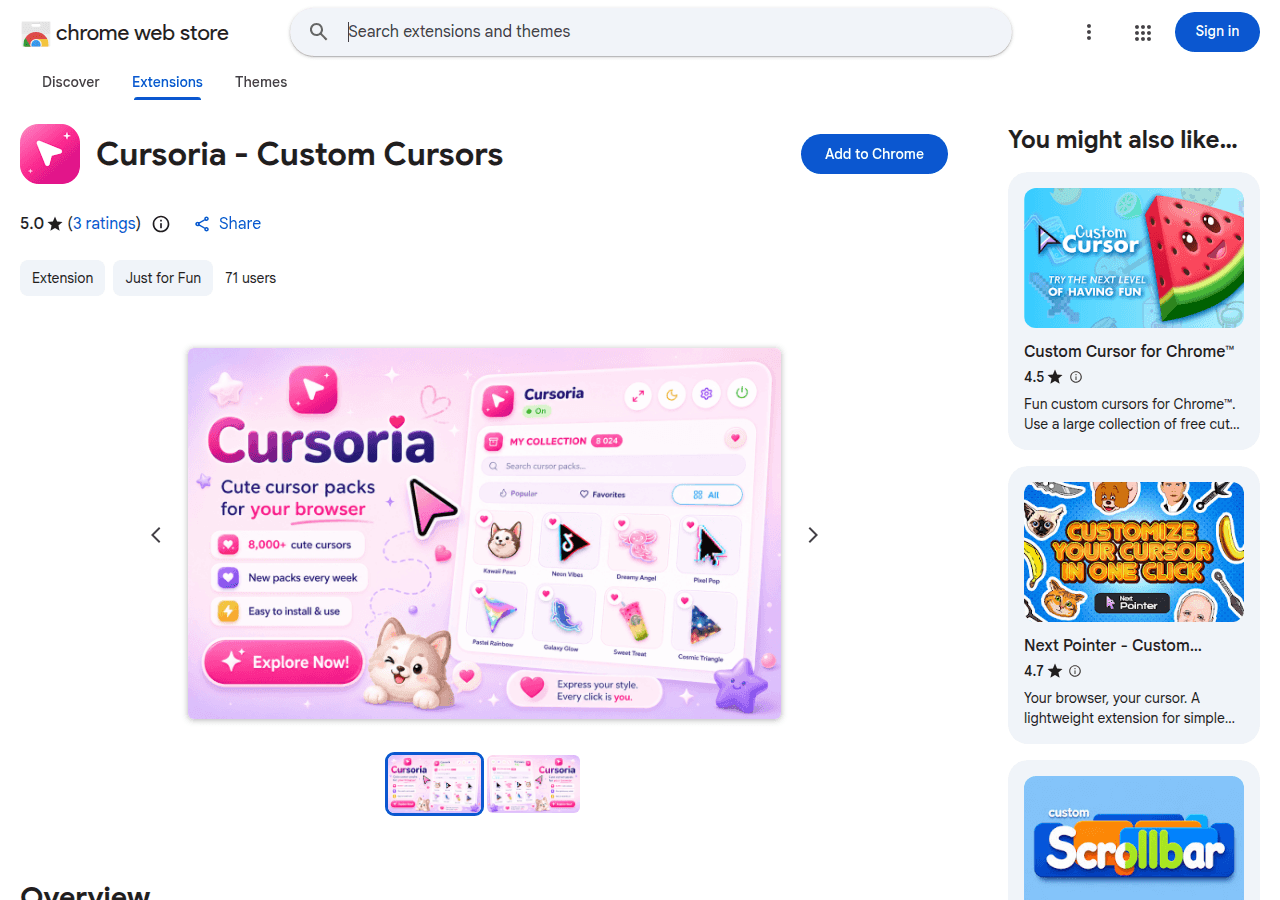
Cursoria offers not only ready-made cursors but also tools for managing them conveniently.
The Chrome Web Store describes:
- search for cursor packs;
- saving favorite designs;
- applying with one click;
- size settings;
- dark mode;
- hotkeys;
- random cursor selection;
- allowlists and blocklists of sites.
Especially interesting is the ability to limit using a custom cursor to certain sites. For example, you can leave it only on pages for leisure and use the standard pointer elsewhere.
Best for: anyone who likes tuning everything to their taste and wants more control over cursor behavior.
8. Custom Cursor World
Install: Custom Cursor World - Chrome Web Store
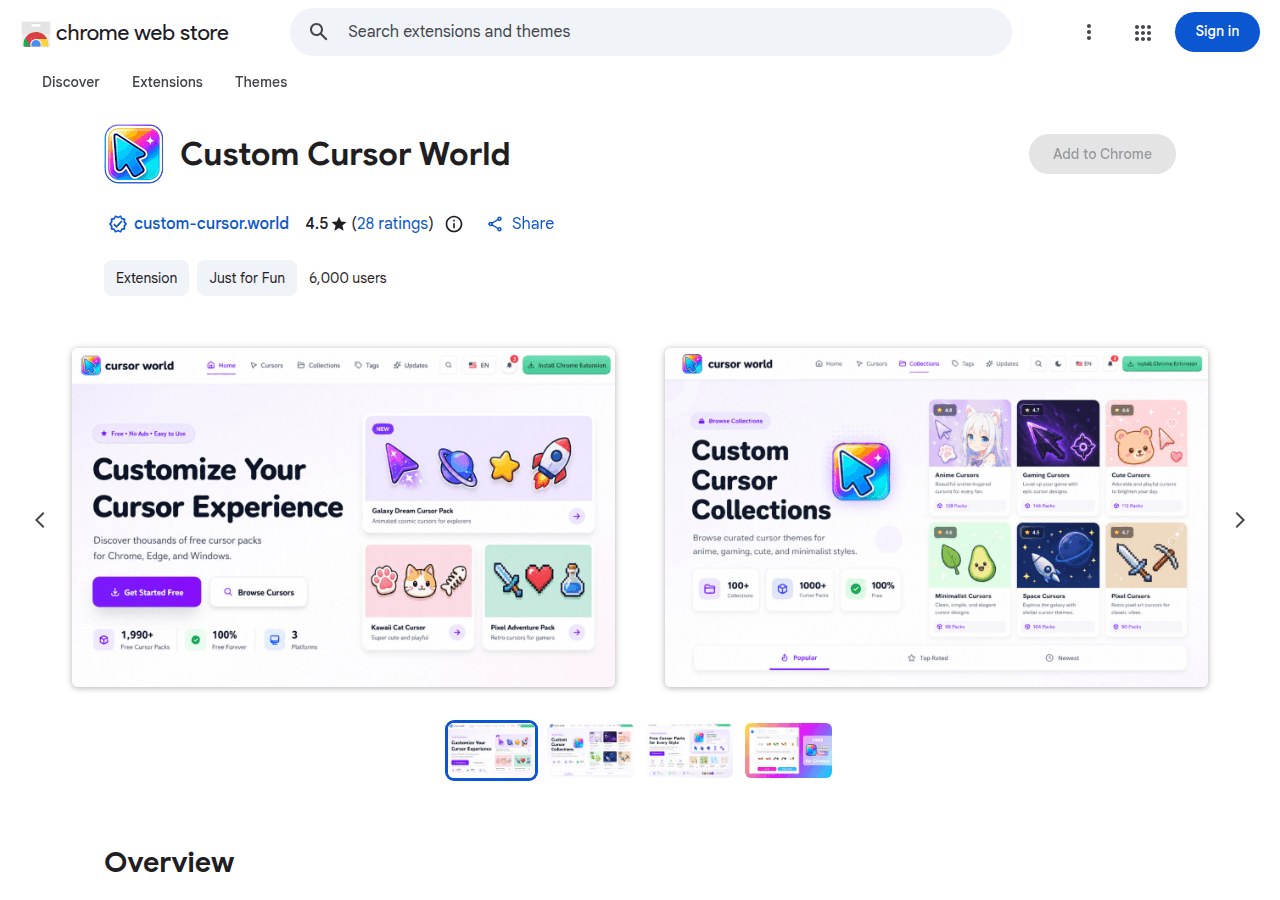
This extension offers collections of different cursors for anyone who wants to make the browser more individual.
Its description emphasizes these directions:
- cute characters;
- anime;
- gaming designs;
- minimalist options;
- themed cursors.
The extension can be viewed as another library of ready-made designs.
Best for: anyone who wants to find an unusual cursor quickly without creating graphics themselves.
9. Cursor Space - Custom Cursors
Install: Cursor Space - Chrome Web Store
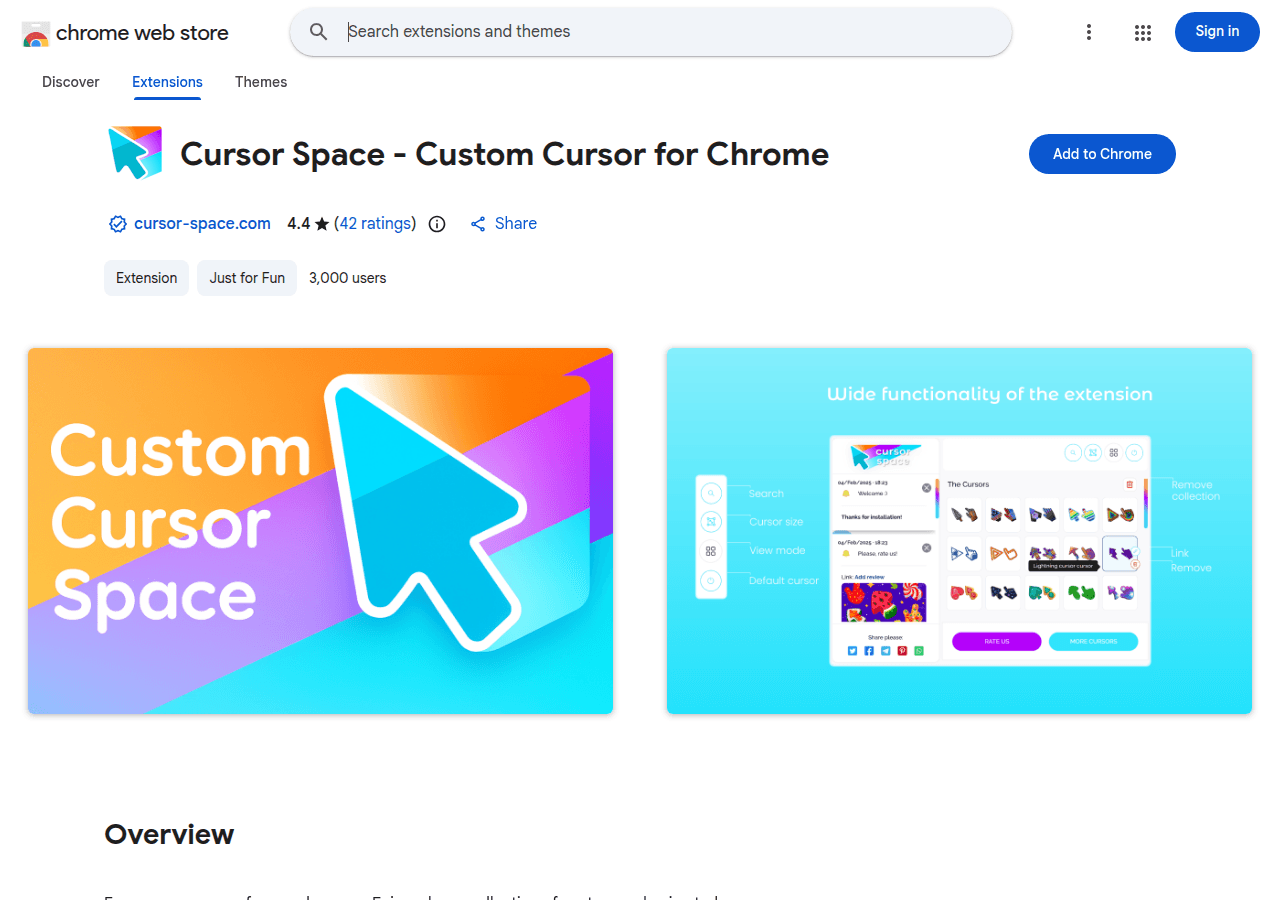
Cursor Space offers a variety of designs for anyone who likes bright styling.
The extension card lists ready-made cursors, static and animated options, and personalization capabilities.
An interesting feature is the ability to create your own designs, not only choose ready-made ones.
Best for: anyone who wants to combine ready-made collections with their own creative ideas.
10. Texture Cursor
Install: Texture Cursor - Chrome Web Store
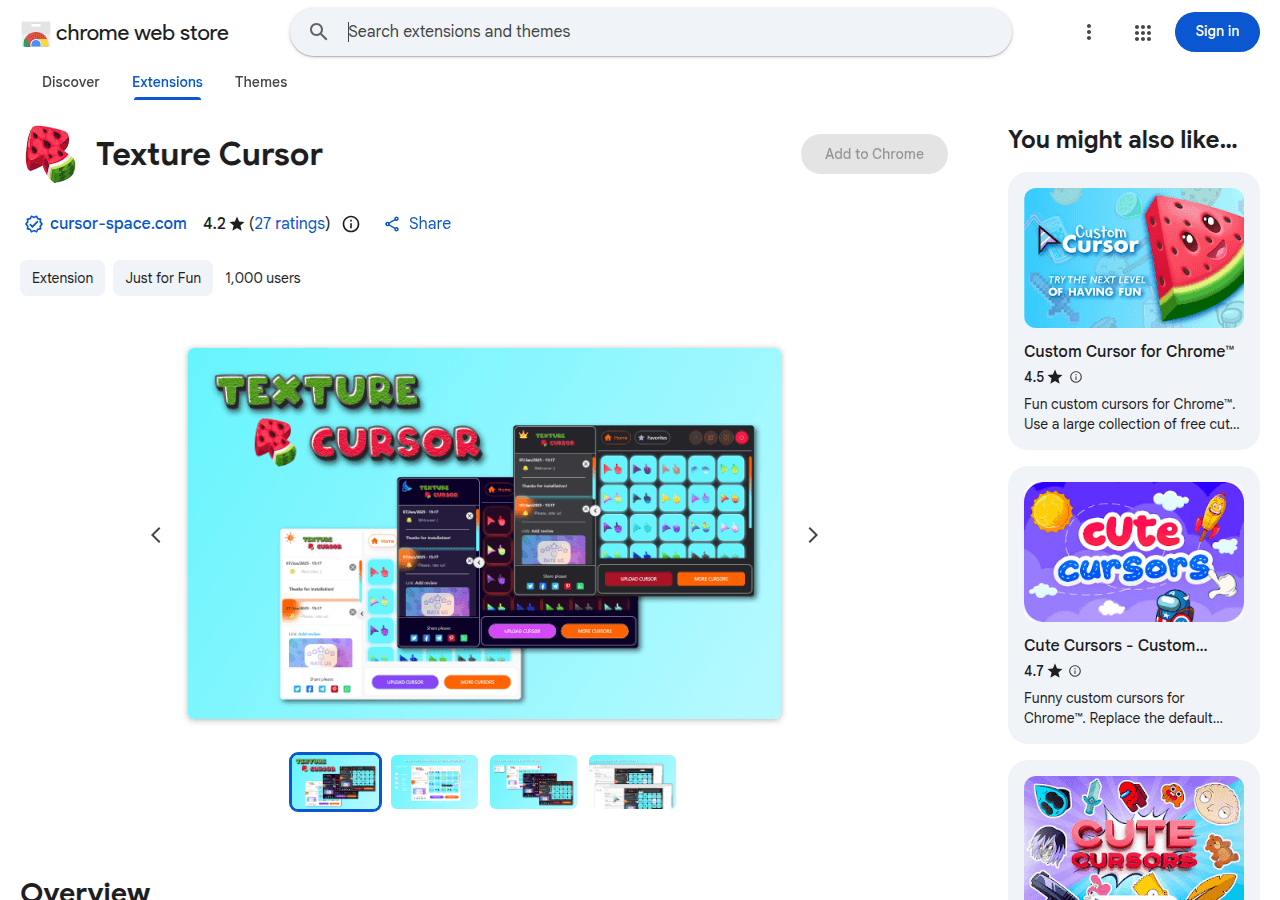
If ordinary colored arrows feel too simple, you can try Texture Cursor.
Its special feature is using different textures. The Chrome Web Store lists:
- Wooden - wood;
- Metal - metal;
- Glass - glass;
- Stone - stone;
- Fabric - fabric;
- Rubber - rubber;
- Silicone - silicone;
- Animated Fire - animated fire;
- Animated Ice - animated ice;
- Matte - matte surface.
You can also change the cursor size and add favorite designs to favorites.
Best for: anyone who wants an unusual textured cursor rather than another cartoon arrow.
11. Awesome Cursors
Install: Awesome Cursors - Chrome Web Store
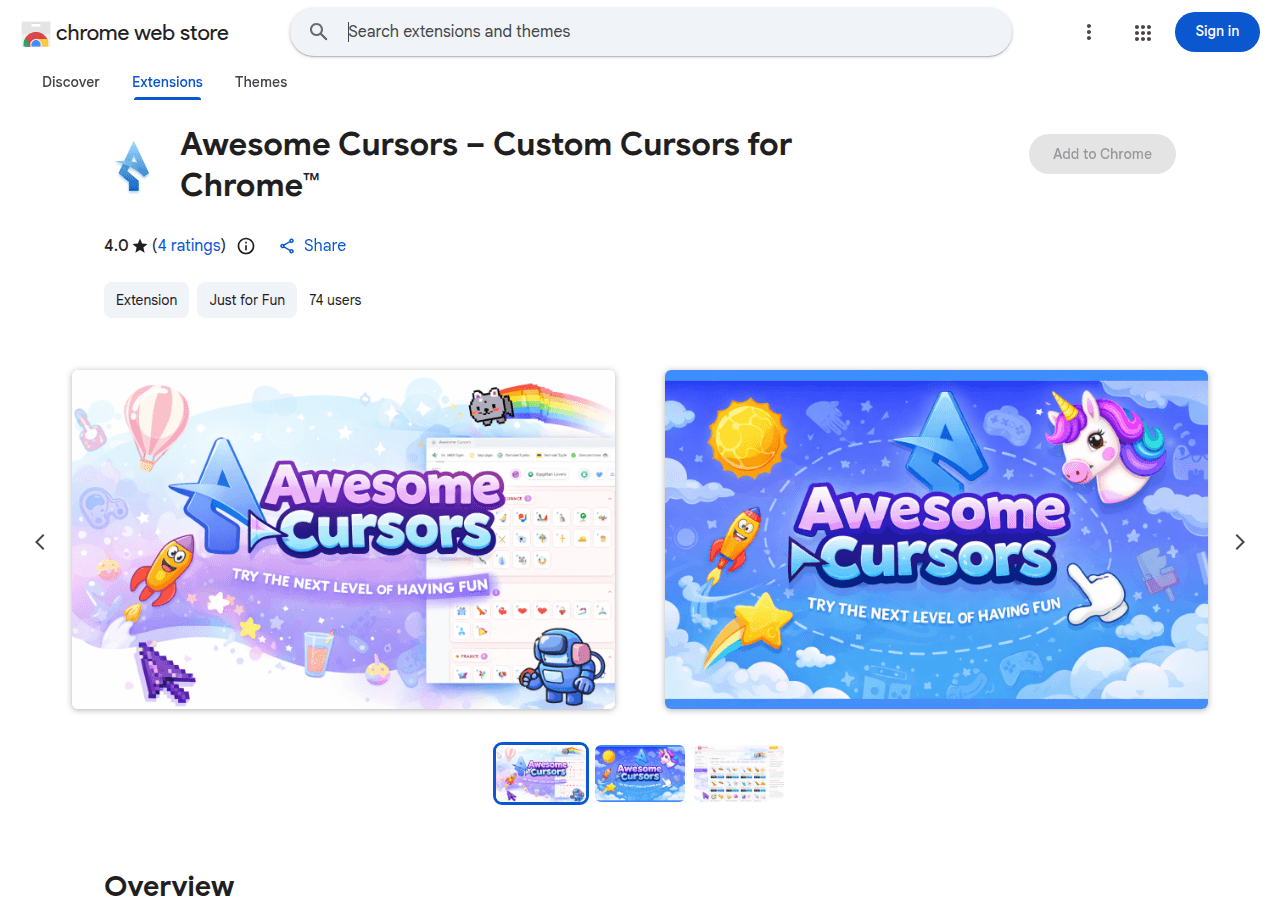
Awesome Cursors is an option for anyone who wants to use more than ready-made designs.
The Chrome Web Store notes more than 100 ready-made cursors, plus the ability to upload your own images in PNG and JPG formats or use an image by URL.
Among other features:
- size settings;
- saving favorite designs;
- dark and light interface themes;
- fast enable and disable;
- minimalist, neon, gaming, and creative styles.
Best for: anyone who wants to create their own cursor from a photo, drawing, or another image.
12. Cursorly - Custom Cursor for Chrome
Install: Cursorly - Chrome Web Store
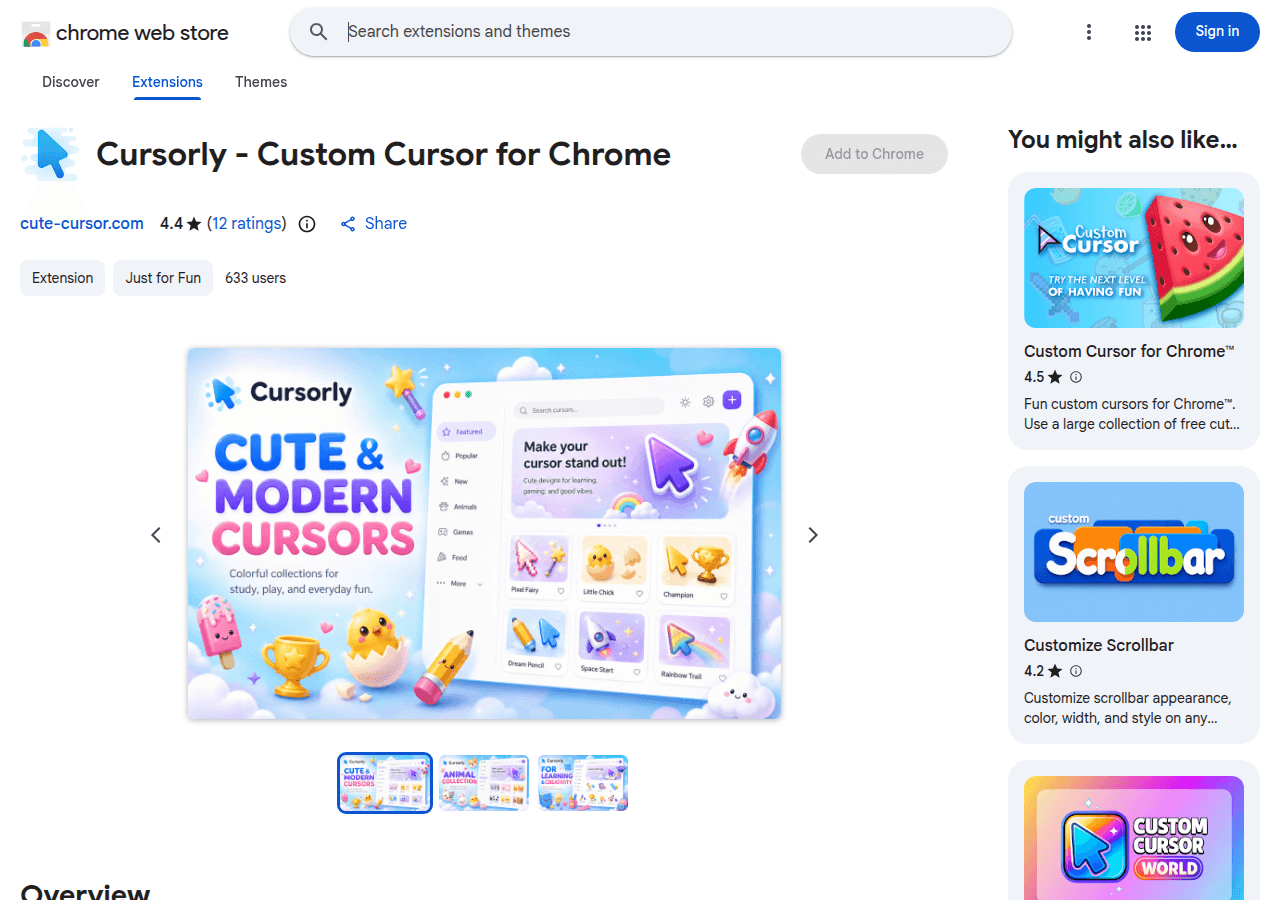
Cursorly is a simple extension for changing the default cursor.
Its description mentions:
- ready-made packs;
- design search;
- size changes;
- fast apply;
- switching between cursors;
- returning to the default look.
The developer recommends refreshing open tabs after installation.
Best for: anyone who needs a simple tool without a large number of extra features.
13. Cursor World
Install: Cursor World - Chrome Web Store
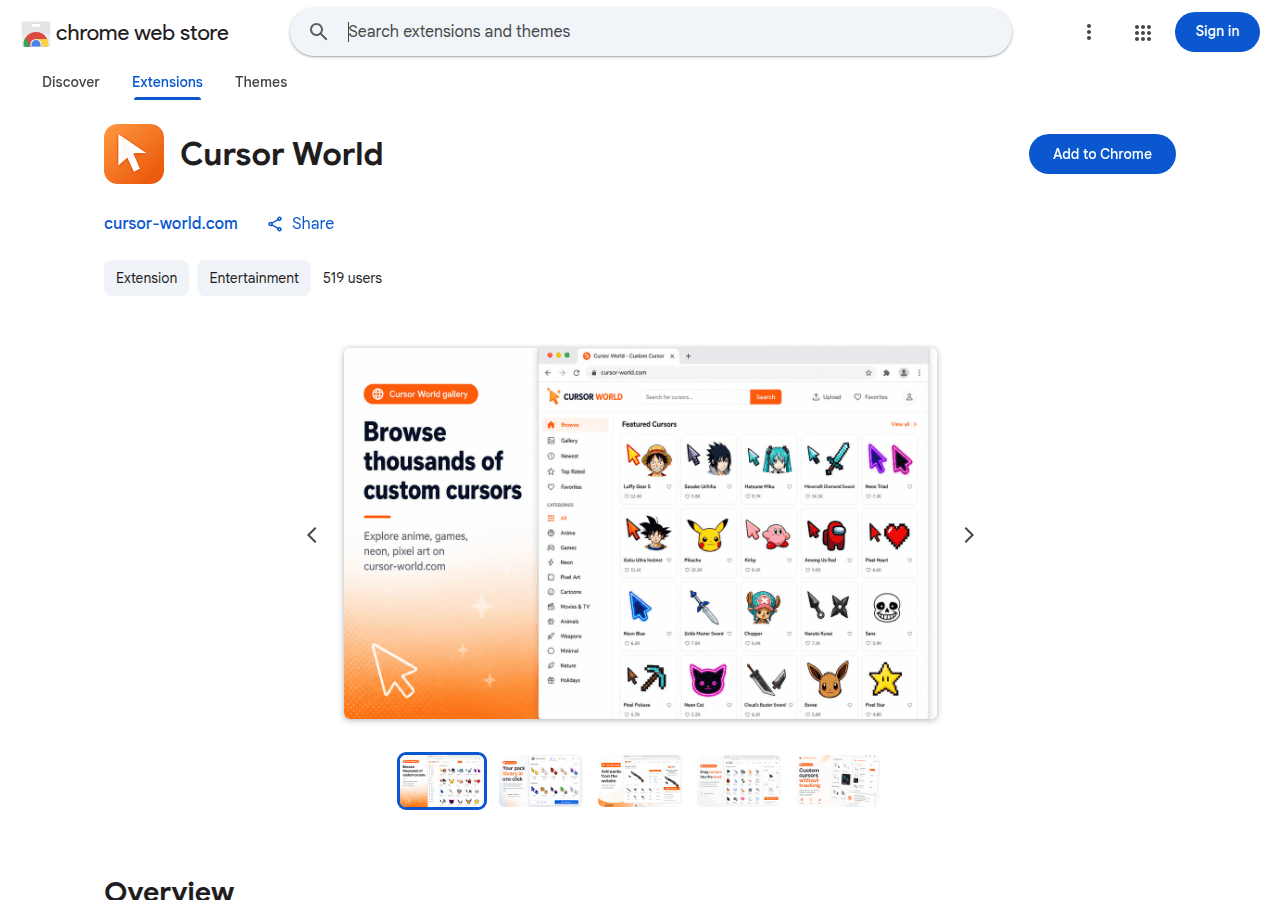
Do not confuse Cursor World with Custom Cursor World from item 8. These are two different extensions.
Cursor World offers a starter library, saving favorite designs, and fast switching between packs.
The store card also describes the ability to install packs from the cursor-world.com site, change cursor size, and manage its display through the extension menu.
Best for: anyone who wants to keep several favorite packs and switch between them quickly.
14. Cursor Pixel - Crazy Things
Install: Cursor Pixel - Chrome Web Store
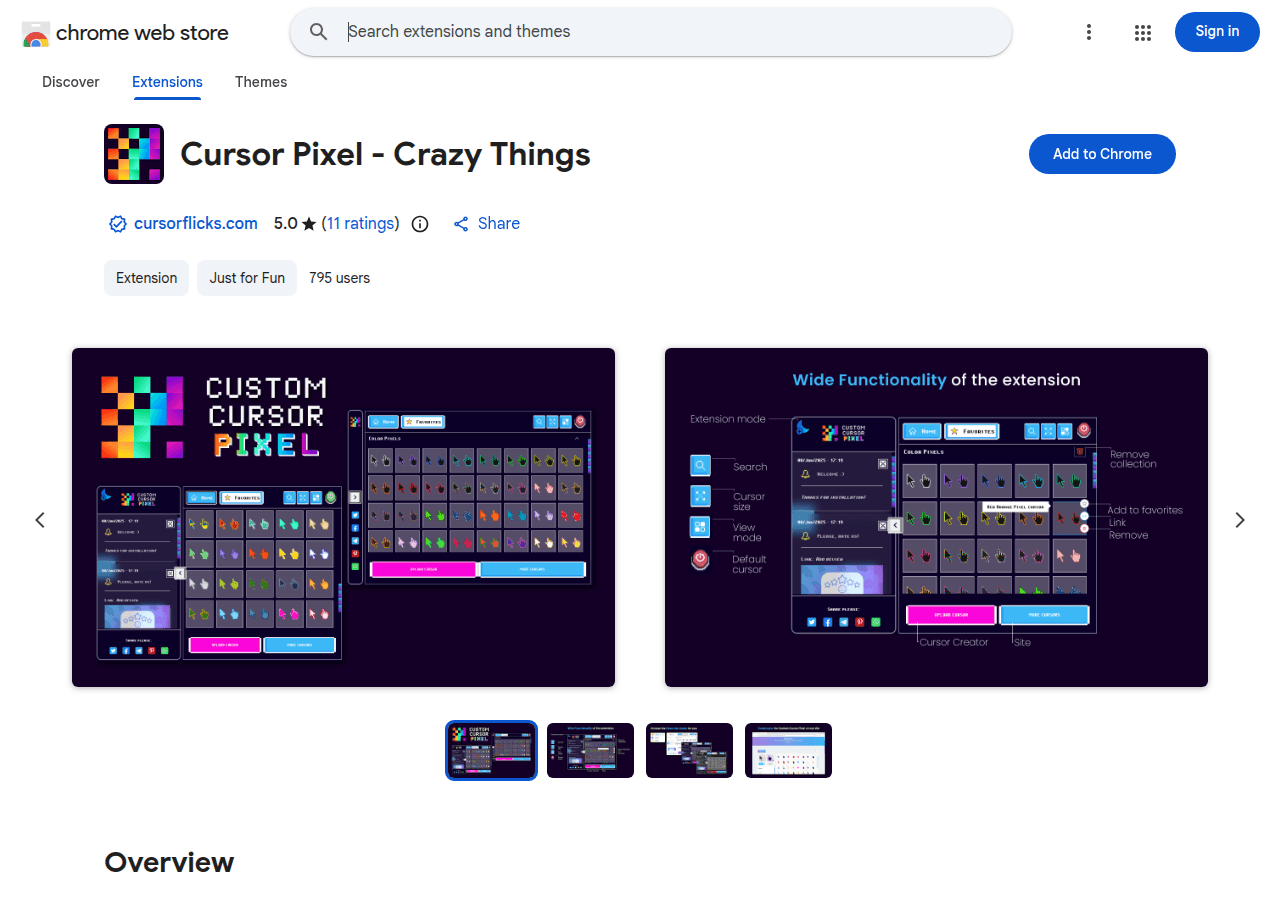
Fans of old video games and pixel art should look at Cursor Pixel.
Its main feature is the pixel style. Instead of a smooth default arrow you can use a cursor that resembles classic game graphics.
This is a more specialized option than the large universal libraries, but that is exactly why it may appeal to fans of retro design.
Best for: anyone who likes Minecraft-like pixel graphics, retro games, and an 8-bit style.
15. Softtrail - Custom Cursor
Install: Softtrail - Chrome Web Store
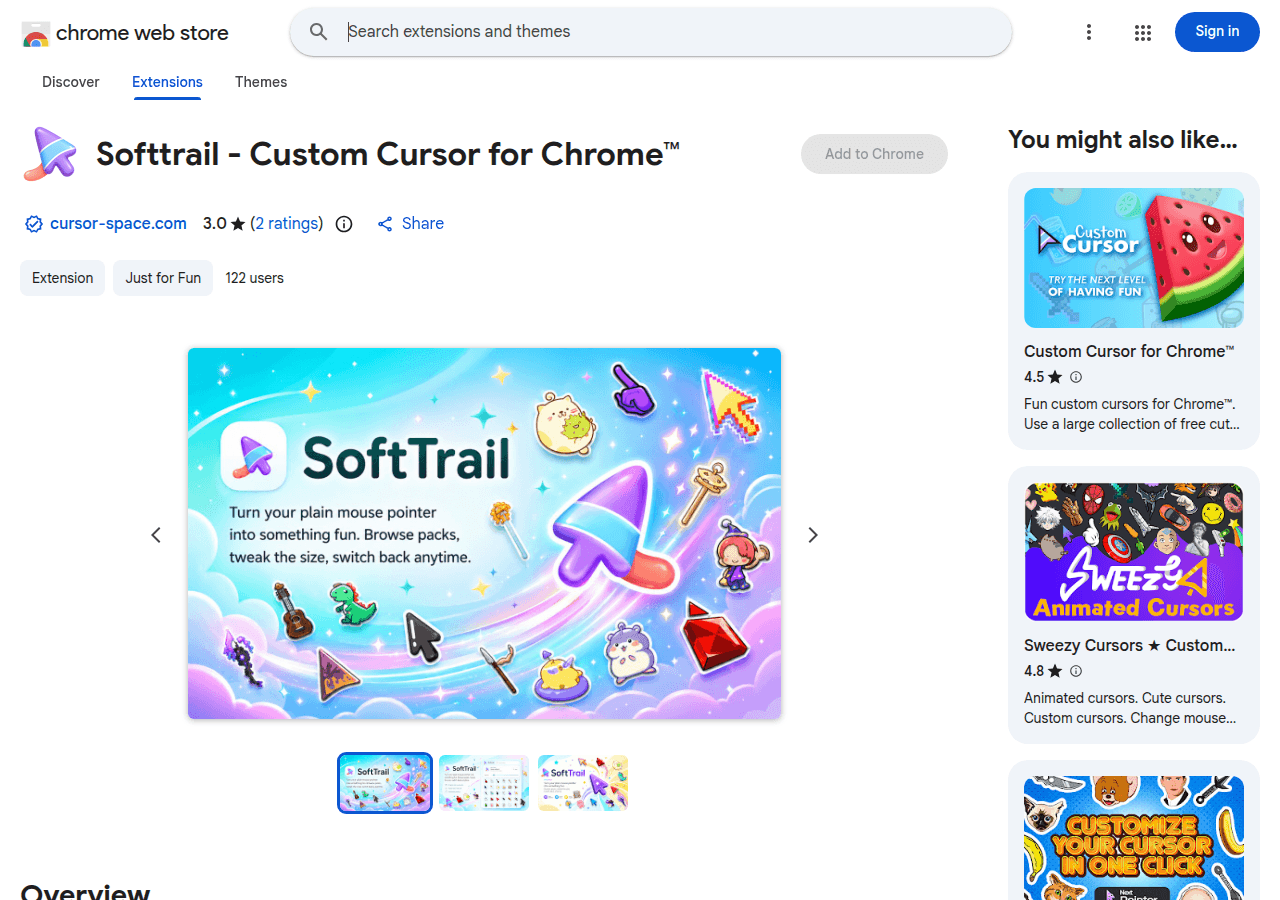
Softtrail offers a ready-made gallery of cursors for Chrome.
The extension card describes cute, minimalist, and gaming designs, plus the ability to change size and switch between options quickly.
This is another option for anyone who wants to personalize the browser without creating graphics themselves.
Best for: anyone looking for a simple gallery with ready-made designs.
16. Texture Cursors - Custom Cursors
Install: Texture Cursors - Chrome Web Store
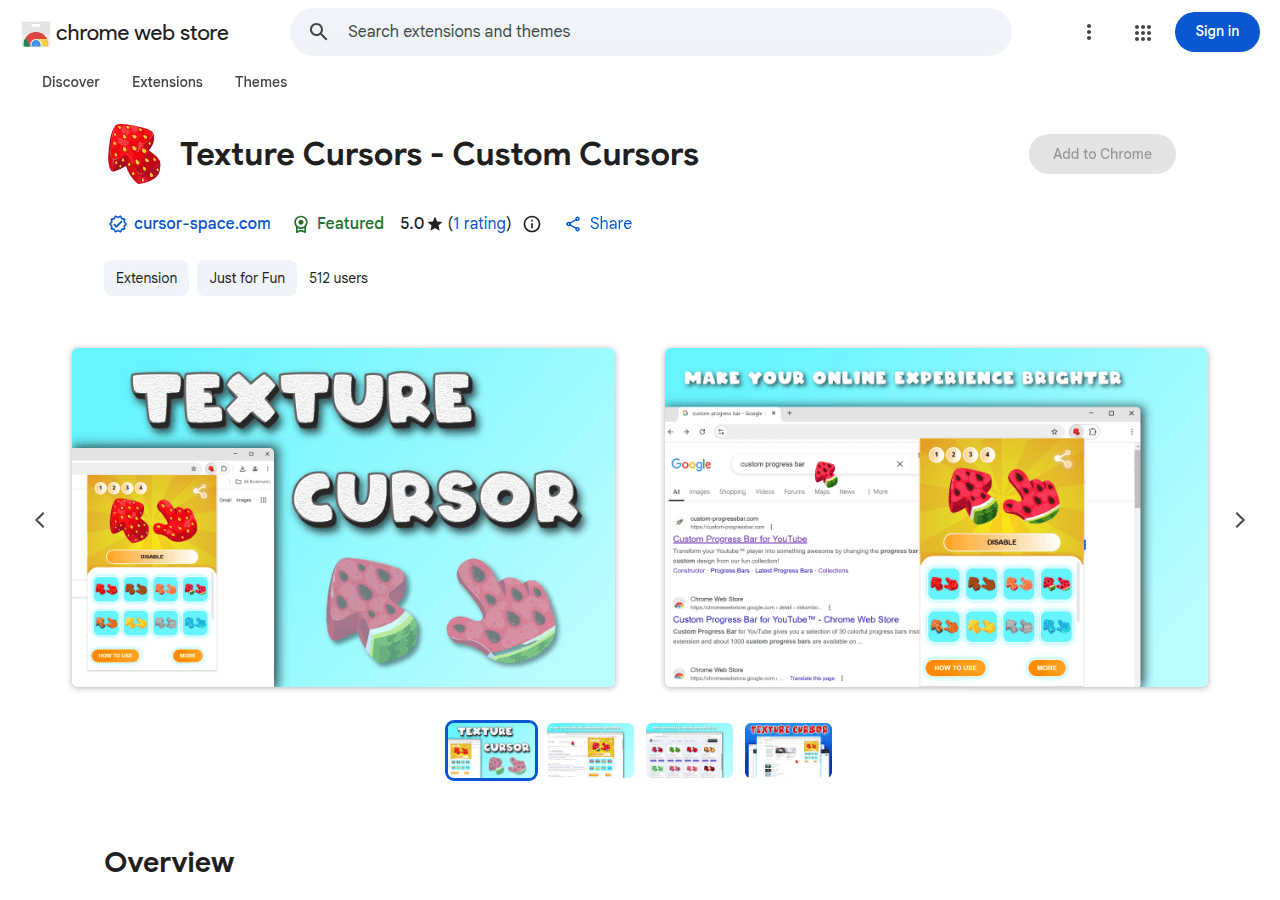
This is another extension connected with the cursor-space.com site. It should not be confused with Texture Cursor from item 10.
In the Chrome Web Store card it is presented as an additional collection of textured cursors. The main idea is to offer users even more unusual pointer styling options.
Best for: anyone who wants to try textured designs and alternative options for the default arrow.
Comparison of Custom Cursor alternatives
To make it easier to choose the extension you need, here is a short table with the main features.
| Extension | Main feature |
|---|---|
| Cursor Helper | Large themed collections and custom packs |
| Cursor Custom | Color and holiday designs |
| Custom Cursor & Cursor Trails | Animated trails and click effects |
| Custom Cursor Pro | Animated cursors, Creator, and Constructor |
| Custom Cursor App | Anime, games, cartoons, and cute designs |
| Navix Cursors | Themed packs and your own images |
| Cursoria | Search, favorites, hotkeys, and site lists |
| Custom Cursor World | Ready-made themed cursors |
| Cursor Space | Static and animated designs |
| Texture Cursor | Wood, metal, glass, fire, and ice |
| Awesome Cursors | Over 100 ready-made designs and your own images |
| Cursorly | Simple switching and size changes |
| Cursor World | Favorites, packs, and fast switching |
| Cursor Pixel | Pixel and retro graphics |
| Softtrail | Gallery of ready-made cursors |
| Texture Cursors | Extra textured designs |
Which Custom Cursor alternative to choose?
Everything depends on the result you want to get.
- If you need a large library: try Cursor Helper or Navix Cursors.
- If you like cute characters: look at Custom Cursor App, Cursor World, or Cursorly.
- If you want to create your own cursors: Cursor Helper, Custom Cursor Pro, or Awesome Cursors work well.
- If you like animations: consider Custom Cursor & Cursor Trails or Cursor Space.
- If you love pixel graphics: try Cursor Pixel.
- If you want unusual textures: look at Texture Cursor and Texture Cursors.
- If extra settings matter: Cursoria offers search, favorites, hotkeys, and site lists.
These are recommendations based on the described features, not a guarantee of compatibility with every school device.
What to do if Custom Cursor is blocked by the administrator?
If Chrome reports that the extension is blocked by the administrator, do not try installing it through third-party files, changing managed settings, or using unknown sites to bypass the restrictions.
There are a few normal options:
- Ask the administrator to allow the extension. You can send a link to a specific product and explain that it is used for cursor personalization.
- Ask about the list of allowed extensions. The school may already have approved tools for changing the cursor.
- Use your own computer. If your personal device has no managed restrictions, you can install the extension according to its rules and permissions.
- Leave the default cursor on the school device. If the institution's rules forbid third-party extensions, it is better to follow them.
Google also provides a way to configure sending requests to install extensions. That means an administrator can let students ask for the tool they need.
More detail: Extension workflows - Let users request extensions.
Will the alternatives work on every site?
Not always. Even if the extension installs successfully, the browser has technical limits.
Custom cursors may not appear on some Chrome pages, including:
- Chrome Web Store;
- settings pages;
- internal system browser pages.
Also, after installing an extension you sometimes need to refresh open tabs.
Another nuance: most extensions change the cursor only on web pages. They do not replace the Windows system cursor in every program and on the desktop.
Before installing, check the description, permissions, and privacy information for the specific extension.
Conclusion: Custom Cursor was blocked - that is not the end of personalization
Custom Cursor is not the only way to change how the cursor looks in Google Chrome. There are many alternatives with different styles and capabilities.
For a large library it is worth considering Cursor Helper or Navix Cursors. For creating your own designs - Awesome Cursors and Custom Cursor Pro. Fans of animations may like Custom Cursor & Cursor Trails, and fans of retro graphics - Cursor Pixel. If you want unusual textures, you can try Texture Cursor.
But why do schools block Custom Cursor? Most often it is related to browser management policy, security, permission control, or general rules for installing software. That does not necessarily mean a specific extension is dangerous.
So before installing an alternative, check the educational institution's rules. If the administration allows browser personalization, you can choose one of the options above. If third-party extensions are forbidden, it is better to ask for permission or use your own device.