16 Chrome Cursor Extensions When Custom Cursor Is Blocked at School
- 1Why do schools block Custom Cursor?
- 2Will installing another extension help?
- 316 Custom Cursor alternatives for Google Chrome
- 4Comparison of all 16 alternatives
- 5Which extension to choose for school?
- 6What to do if every extension is blocked?
- 7Important limits of custom cursors
- 8Conclusion
- 9All links to the alternatives
Imagine this situation: you want to install Custom Cursor so you can replace the ordinary mouse arrow with a cute character, a cat, or a bright animated design. You open the Chrome Web Store, find the extension you need, click Add to Chrome - and instead of installing it you see a message that the extension is blocked by the administrator.
Sound familiar? On school computers this really can happen. The school administration may limit installing third-party extensions to control software, protect devices, and keep students focused on learning.
But that does not mean you have to give up cursor personalization forever. There are dozens of other extensions with different collections, designs, and features. Some offer cute cursors, others offer pixel art, textures, animations, or the ability to upload your own image.
This article gathers 16 different Google Chrome extensions that can serve as alternatives to Custom Cursor. Among them are Cursor Helper, Cursor Custom, Cursoria, Custom Cursor Pro, Cursor World, Texture Cursor, and many others.
Important: an alternative extension is not a way to bypass school restrictions. If the administrator has blocked installing third-party extensions, other options may be blocked as well. Use them only where school rules allow it, or on your own device.
Why do schools block Custom Cursor?
First it is worth understanding why cursor-changing extensions may be unavailable on school computers.
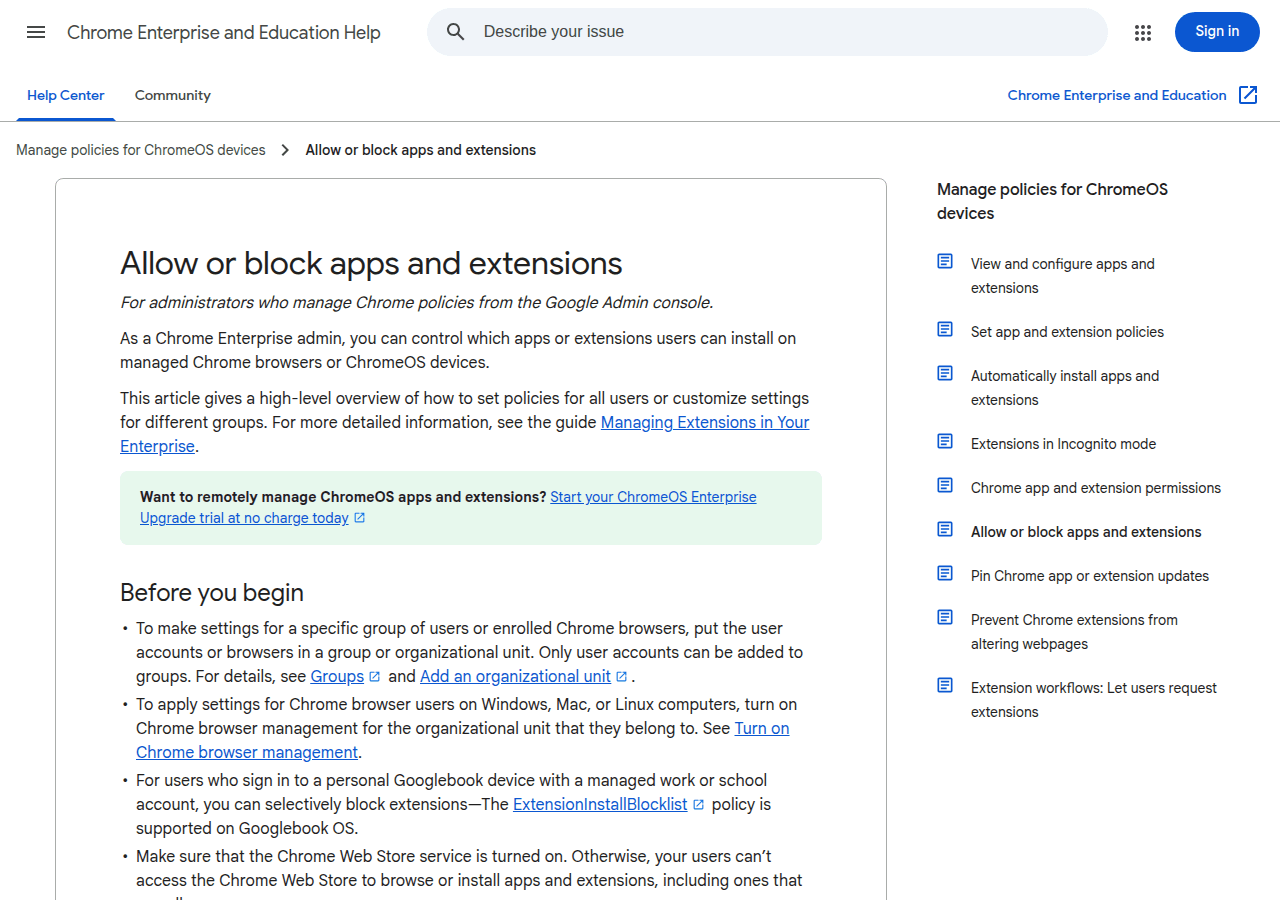
Schools often use managed Google accounts, Chromebooks, or Chrome browsers configured by the administration. An administrator can control which apps and extensions students are allowed to install.
Google officially provides several ways to manage this:
- allow installing all extensions except specific blocked ones;
- allow only extensions from an approved list;
- block a specific extension;
- restrict extensions by category;
- disallow certain permissions that extensions request;
- let students submit requests to install the extensions they need.
An administrator can apply these settings to specific user groups or managed devices.
So if Custom Cursor will not install, the reason may not be the extension itself, but the Chrome policy the school configured.
Official Google help: Allow or block apps and extensions.
Will installing another extension help?
Not necessarily. If the school blocked only one specific product, another extension may be allowed. But if installing all third-party extensions is forbidden, swapping Custom Cursor for Cursor Helper or any other option will not solve the problem.
An administrator can also restrict not only installation, but the operation of already installed extensions or their access to web pages.
So the best option is to ask a teacher or administrator whether a specific browser personalization extension is allowed.
16 Custom Cursor alternatives for Google Chrome
Below are different extensions from the Chrome Web Store. They are not one product and do not necessarily belong to the same company. Each has its own developer, description, and feature set.
1. Cursor Helper - Custom Cursors
Large libraryLink: Cursor Helper in the Chrome Web Store
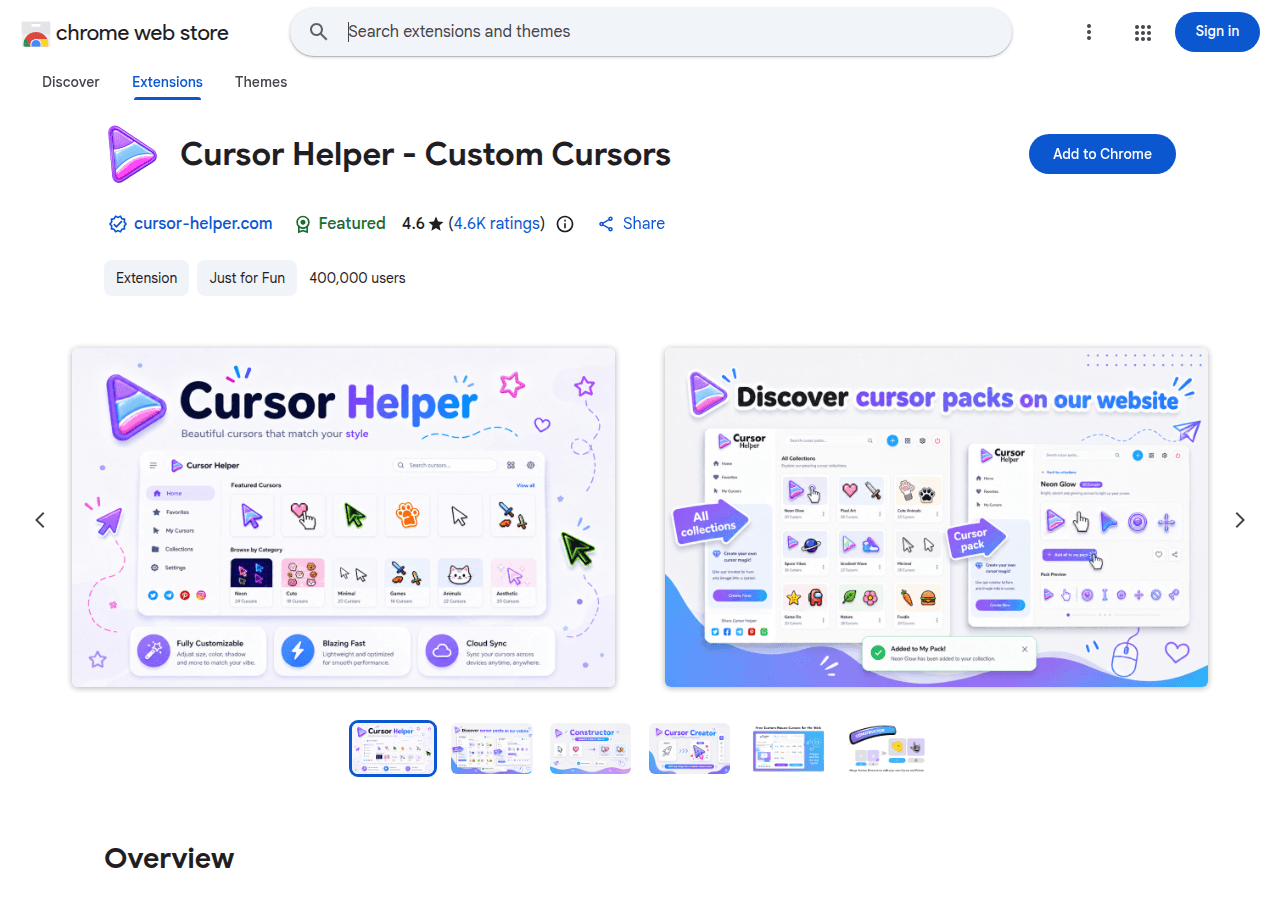
Cursor Helper is one of the most interesting options for anyone who wants a large selection of ready-made designs.
The extension lets you personalize the cursor while browsing web pages. The Chrome Web Store description mentions collections with themes such as:
- cute designs;
- memes;
- neon styles;
- animals;
- nature;
- holidays;
- entertainment characters;
- sports;
- video games;
- retro.
Users can switch between packs and find options that match their mood.
At the time of checking, the Chrome Web Store showed a 4.6 out of 5 rating and about 400,000 users.
This is a strong choice for anyone who wants more than a one-time swap of the default arrow and prefers to experiment with different styles regularly.
2. Cursor Custom
Link: Cursor Custom in the Chrome Web Store
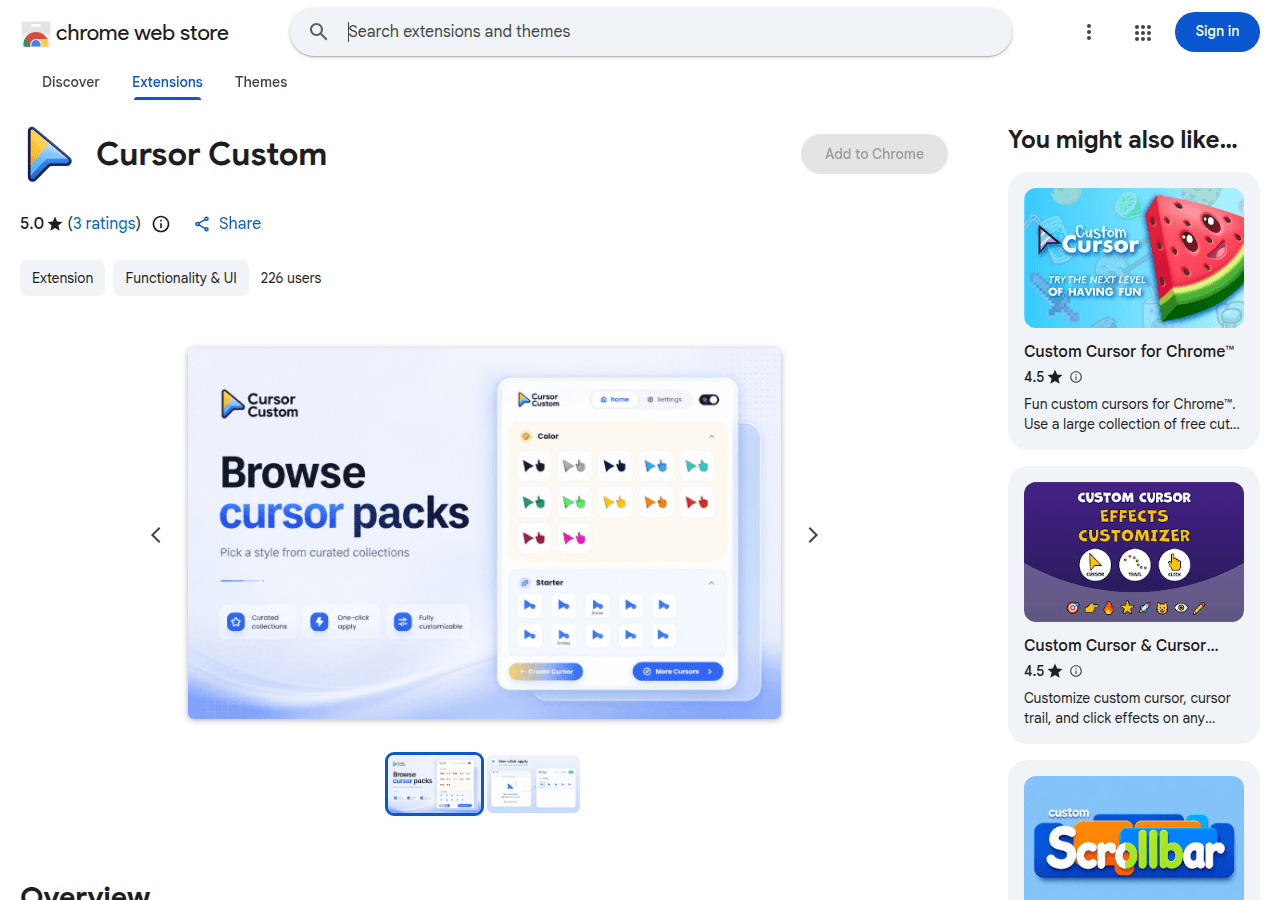
Cursor Custom focuses on quickly changing how the pointer looks.
In the description the developer highlights these capabilities:
- browse ready-made packs;
- apply a cursor with one click;
- switch between designs;
- turn off the custom cursor with one toggle;
- adjust cursor size.
Built-in collections mentioned include Color, Starter, and Holidays.
This is a convenient option when you do not need complex settings. You can pick a color, a holiday design, or one of the popular starter options.
3. Custom Cursor & Cursor Trails
Link: Custom Cursor & Cursor Trails in the Chrome Web Store
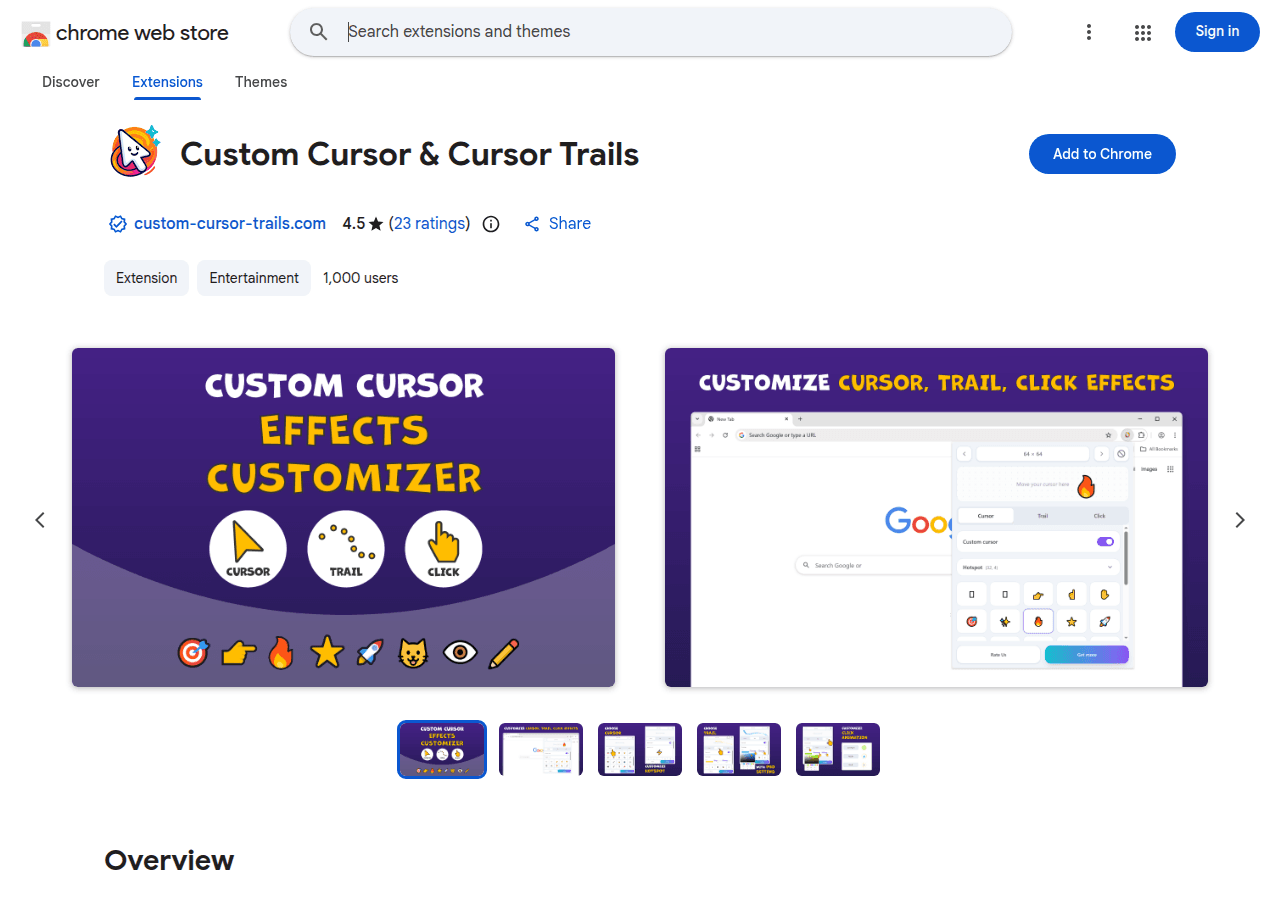
This option is more interesting for anyone who finds a plain arrow swap not enough.
The extension combines three features:
- Replace the default cursor with a ready-made design or your own image.
- Add an animated trail behind the mouse.
- Visual effects on click.
The Chrome Web Store also describes settings for particle density, animation speed, motion smoothness, and cursor size.
Effects mentioned include light lines, particles, classic trails, ripple effects, and click highlighting.
This is one of the most interesting options on the list for anyone who wants to turn ordinary mouse movement into a small animation.
4. Custom Cursor Pro - Custom Cursor
Link: Custom Cursor Pro in the Chrome Web Store
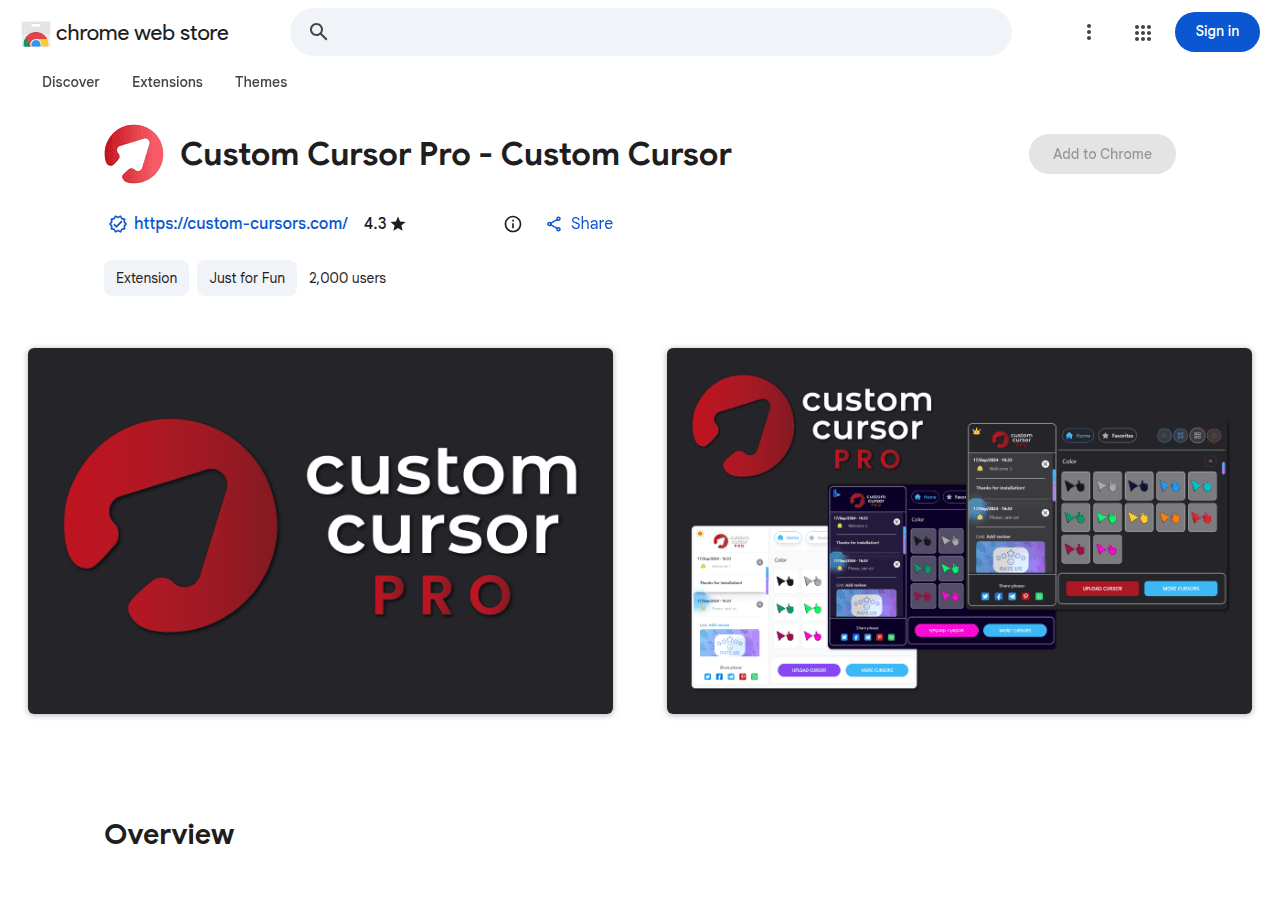
Custom Cursor Pro offers a design library for personalizing the browser.
The extension description emphasizes colorful and animated cursors. In particular, it mentions designs inspired by movies, games, and anime.
The Chrome Web Store card also lists extra tools:
- Creator - for making your own cursor from an image;
- Constructor - for combining elements and building a pack.
This is a good option for anyone who likes animated designs and wants to try creating a cursor of their own.
5. Custom Cursor App - Custom Cursor for Chrome
Link: Custom Cursor App in the Chrome Web Store
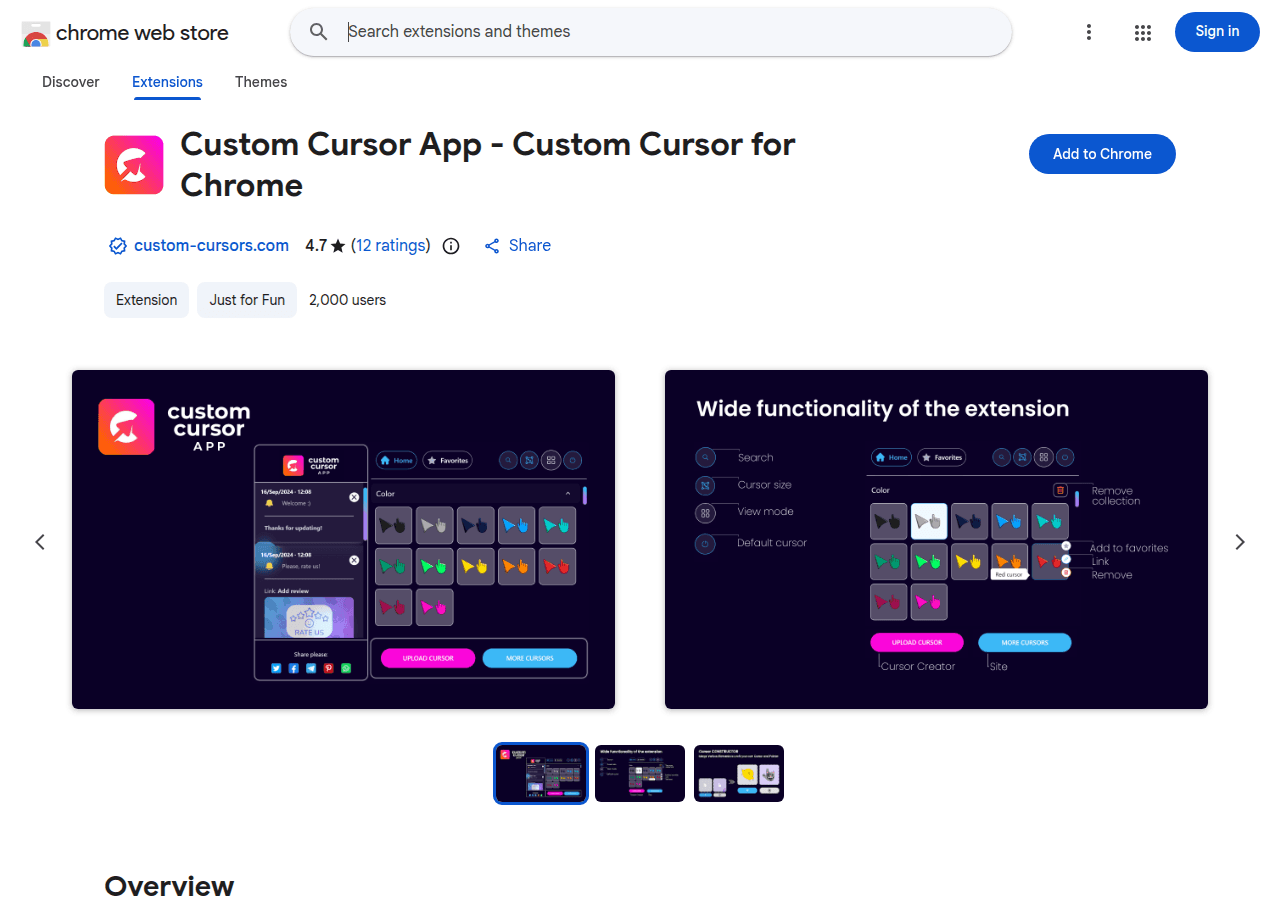
This is another option from the owner of the custom-cursors.com site.
In the Chrome Web Store the extension is described as a free tool for cursor personalization. Categories mentioned include:
- anime;
- cute;
- fantasy;
- gaming;
- cartoon;
- memes;
- minimal.
The developer also notes that the library contains thousands of cursor packs divided into categories.
This option may appeal to anyone who wants to browse many different themed designs and not stay limited to one style.
6. Navix Cursors - Custom Cursor
Link: Navix Cursors in the Chrome Web Store
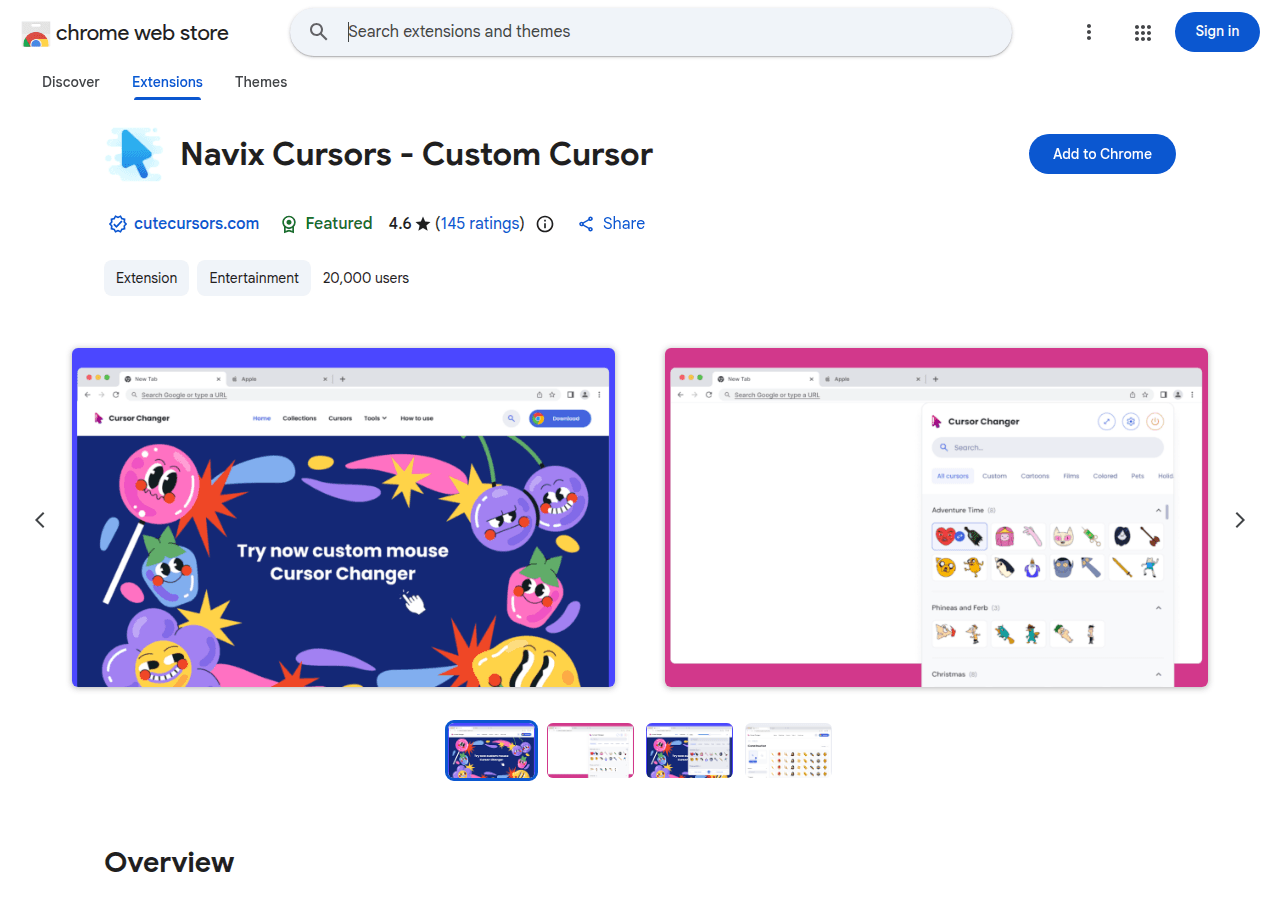
Navix Cursors is connected with the cutecursors.com site.
The extension offers ready-made cursor packs you can browse and use in Chrome.
Its description mentions:
- cursor collections;
- design search;
- themed packs;
- the ability to save favorite options;
- uploading your own images to create packs.
Themes include games, cartoons, anime, memes, gradients, animals, and seasonal designs.
At the time of checking, the Chrome Web Store showed about 20,000 users and a 4.6 out of 5 rating.
7. Cursoria - Custom Cursors
Flexible settingsLink: Cursoria in the Chrome Web Store
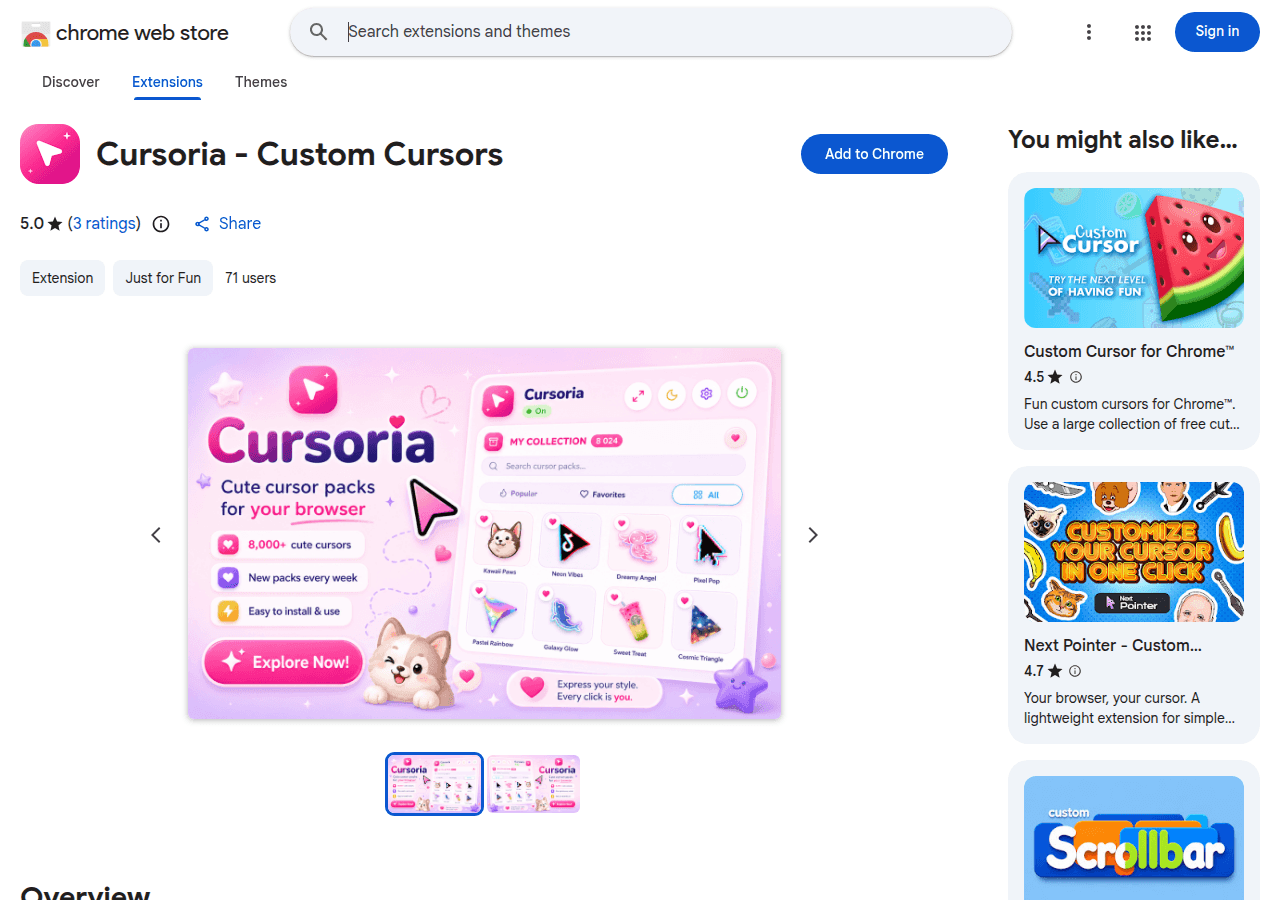
Cursoria is an extension that offers not only a catalog, but also extra ways to manage cursors.
The Chrome Web Store lists features such as:
- search across packs;
- saving favorite cursors;
- apply with one click;
- real-time size adjustment;
- dark mode for the interface;
- hotkeys;
- random cursor selection;
- allowlists and blocklists of sites.
That last capability is especially interesting: you can configure which sites use a custom cursor and which keep the default one.
For school this can be useful if personalization is allowed, but you do not want an unusual cursor to appear on every page.
8. Custom Cursor World
Link: Custom Cursor World in the Chrome Web Store
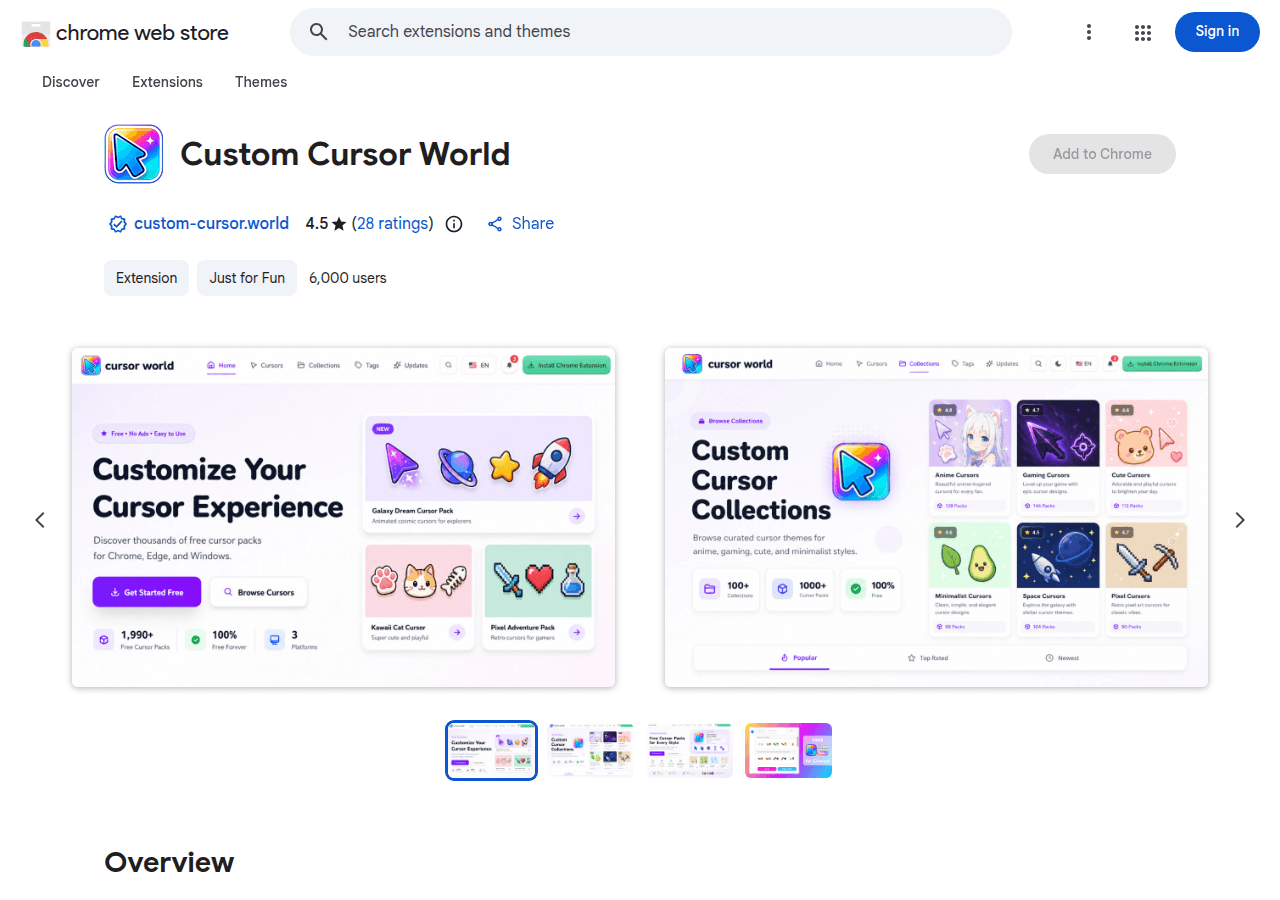
Custom Cursor World is an extension that offers a large library of free designs.
The Chrome Web Store card mentions:
- thousands of themed cursors;
- cute characters;
- anime;
- gaming symbols;
- minimalist designs;
- fast installation;
- a simple way to change the default pointer.
This is an option for anyone who likes varied styles and wants to find a cursor that matches personal taste.
It is important not to confuse it with similarly named extensions: this product has its own Chrome Web Store ID.
9. Cursor Space for Chrome
Link: Cursor Space in the Chrome Web Store
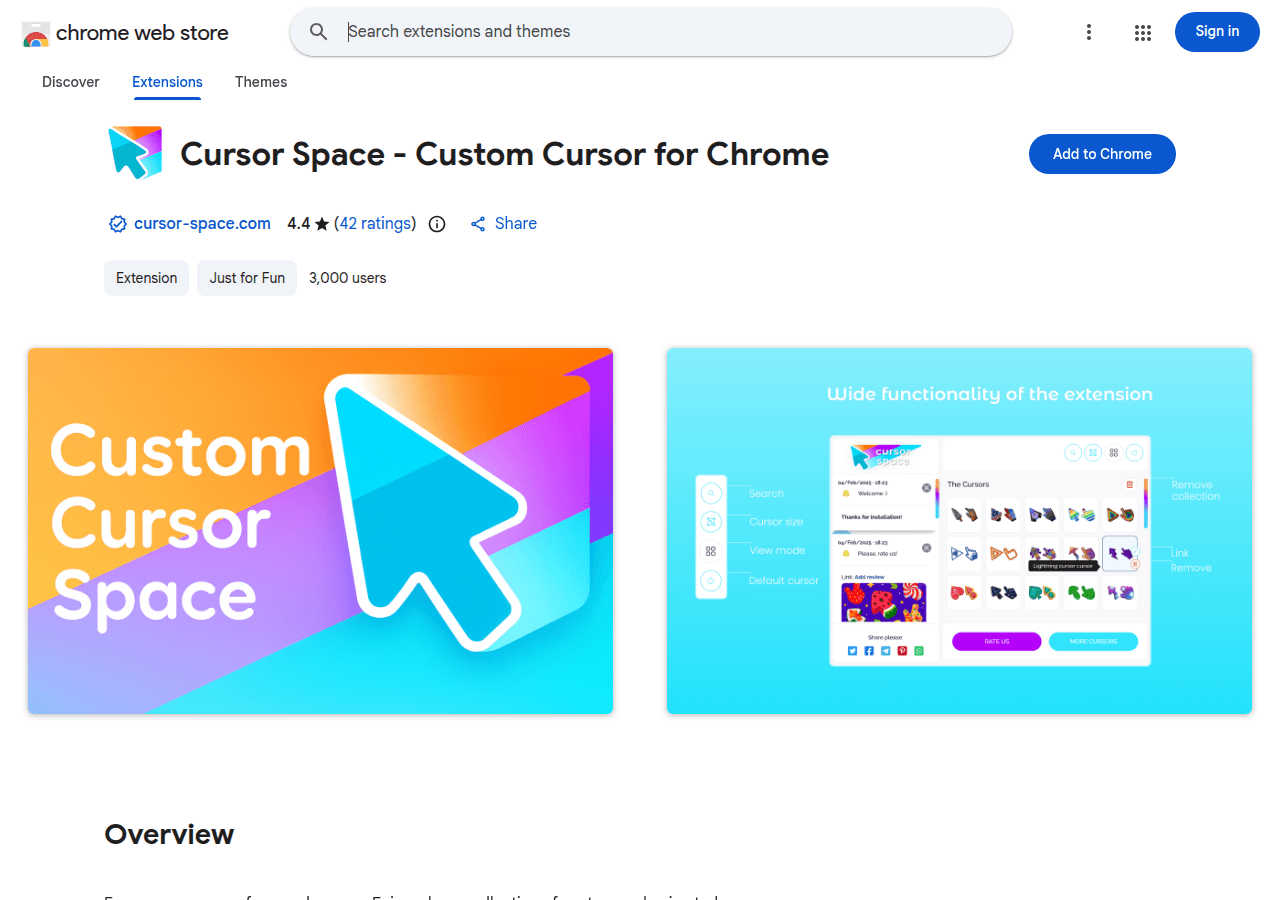
Cursor Space is aimed at users who like bright and unusual designs.
The Chrome Web Store lists:
- a large cursor collection;
- static and animated designs;
- cute and decorative styles;
- gaming and meme motifs;
- the ability to create your own cursor;
- settings for shape, color, and animation.
The developer also notes that new designs are added regularly.
This is an interesting choice for anyone who wants not only to install a ready-made arrow, but also to try creating their own version.
10. Texture Cursor
Link: Texture Cursor in the Chrome Web Store
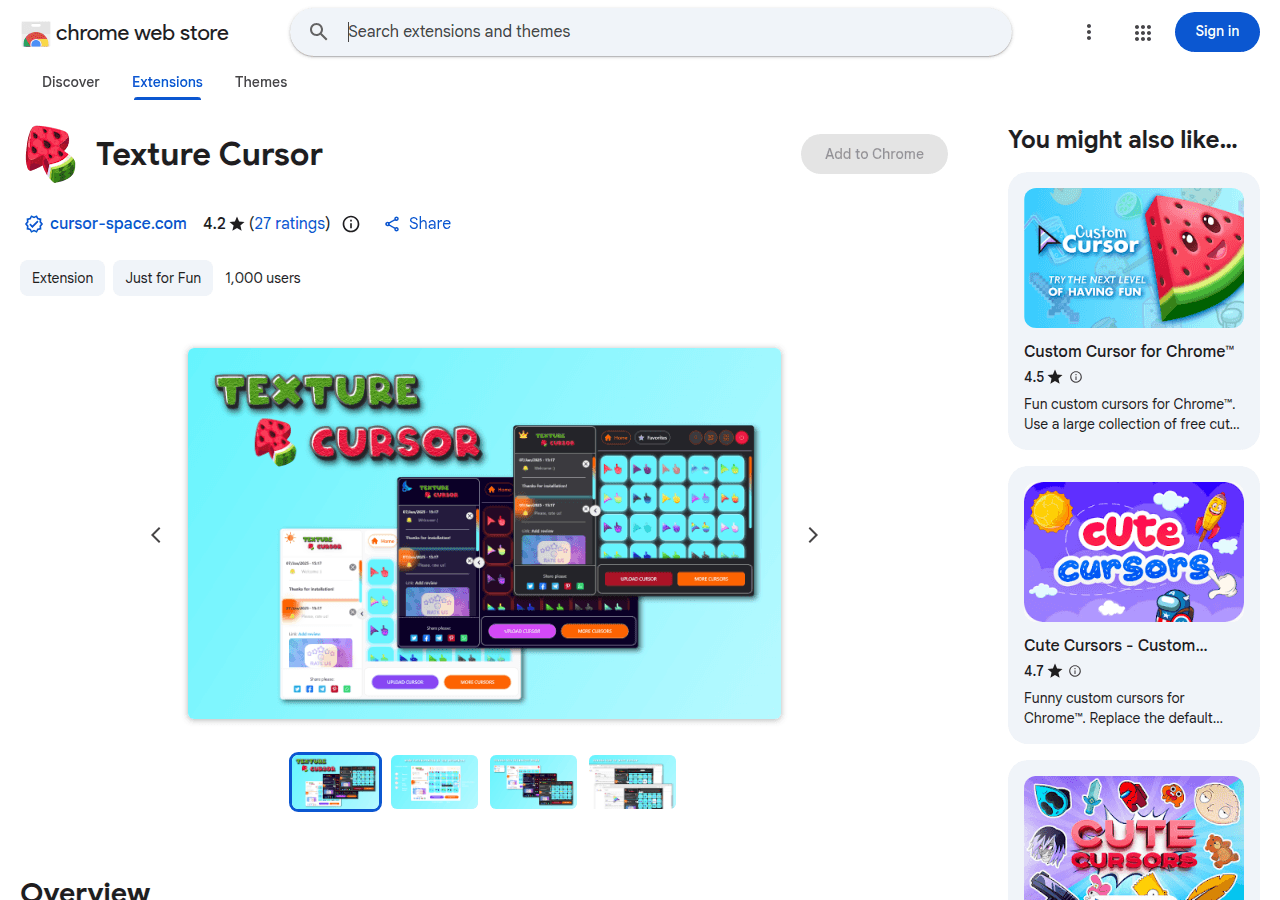
If ordinary colorful cursors feel boring, take a look at Texture Cursor.
Its main feature is textures. The Chrome Web Store lists options such as:
- Wooden - a wood surface;
- Metal - a metal design;
- Glass - a glass effect;
- Stone - a stone texture;
- Fabric - fabric;
- Rubber - matte rubber;
- Silicone - a smooth surface;
- Animated Fire - animated fire;
- Animated Ice - animated ice;
- Matte - a restrained matte design.
The extension also lets you change cursor size and add favorite options to a favorites list.
This is one of the most unusual options on the list, because instead of characters and cartoon drawings the focus is on materials and textures.
11. Awesome Cursors - Custom Cursors for Chrome
Link: Awesome Cursors in the Chrome Web Store
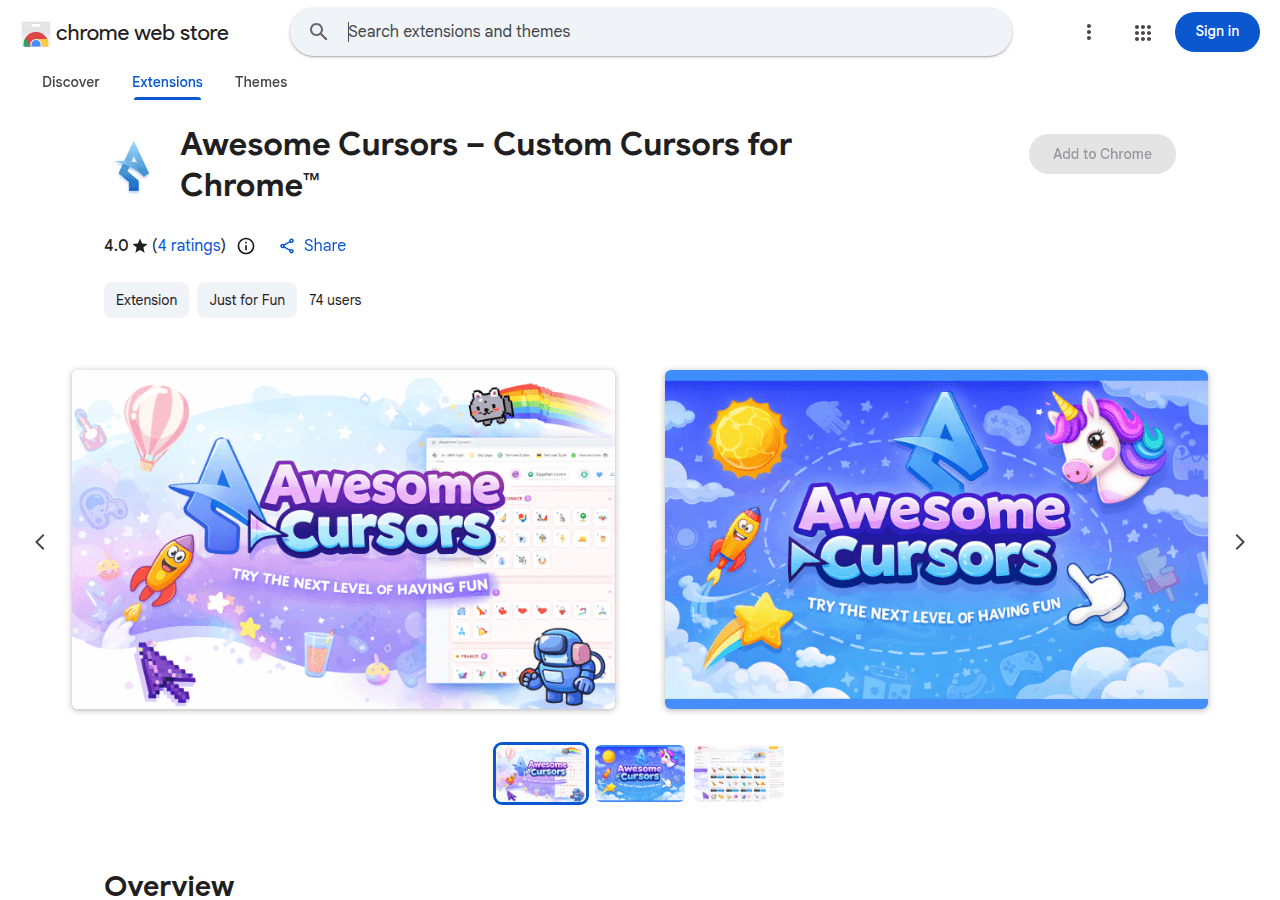
Awesome Cursors offers more than 100 ready-made cursor designs.
An especially useful capability is uploading your own images. The extension card mentions PNG and JPG formats, plus the option to use an image by URL.
Other capabilities:
- size settings;
- saving favorite cursors;
- dark and light interface themes;
- quick enable and disable;
- Minimal, Neon, Gaming, Fun, and Creative styles.
This option may appeal to anyone who wants to use their own graphics, not only ready-made designs from a library.
12. Cursorly - Custom Cursor for Chrome
Link: Cursorly in the Chrome Web Store
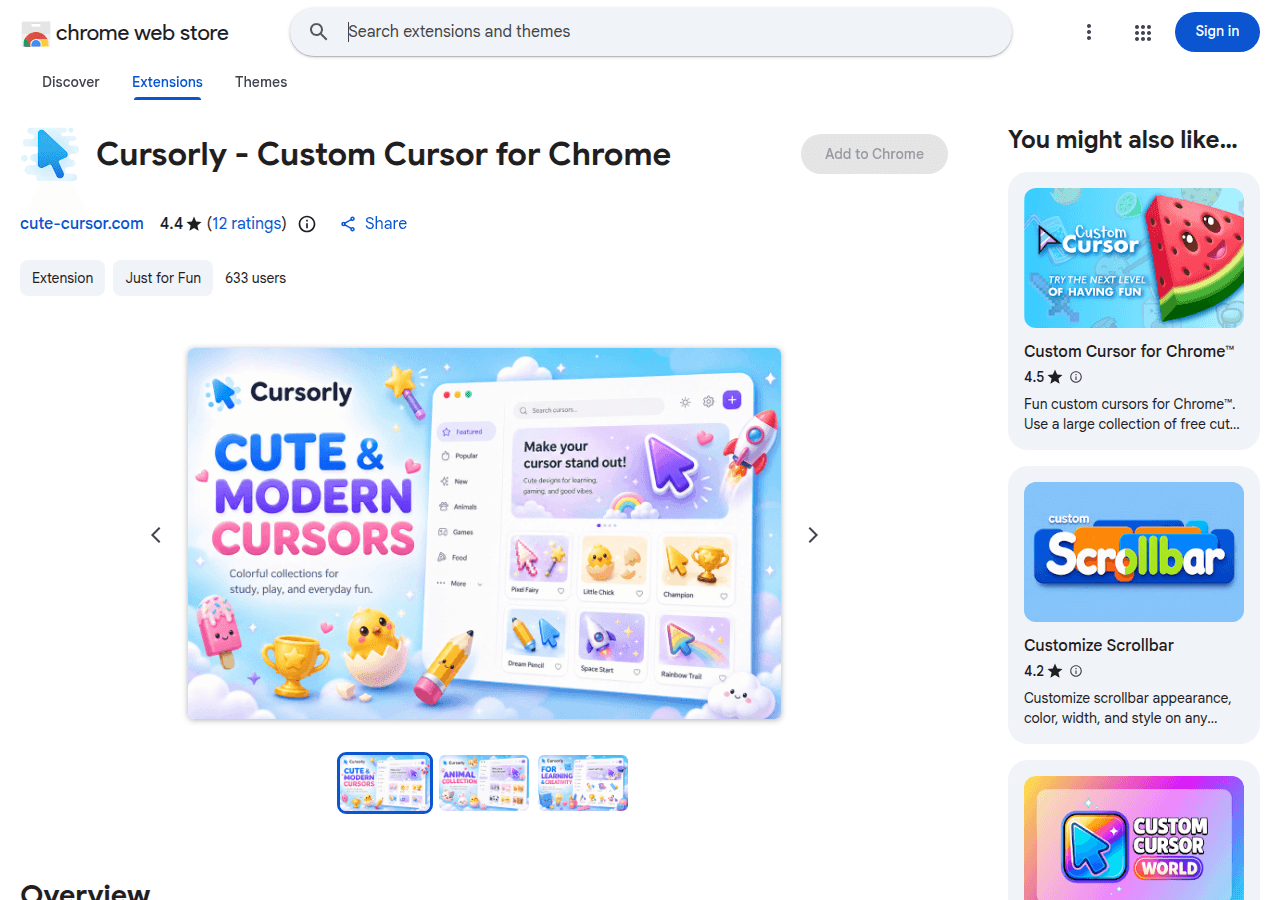
Cursorly is connected with the cute-cursor.com site.
The extension offers a simple way to change the default pointer:
- choose a ready-made pack;
- search cursors by name;
- save favorite designs;
- change the size;
- switch between options;
- return to the default cursor.
The developer recommends refreshing open tabs after installation. The Chrome Web Store also notes that custom cursors do not work on protected browser pages, including the Chrome Web Store and Chrome settings.
This is a good option when you need a simple interface without extra parameters.
13. Cursor World
Link: Cursor World in the Chrome Web Store
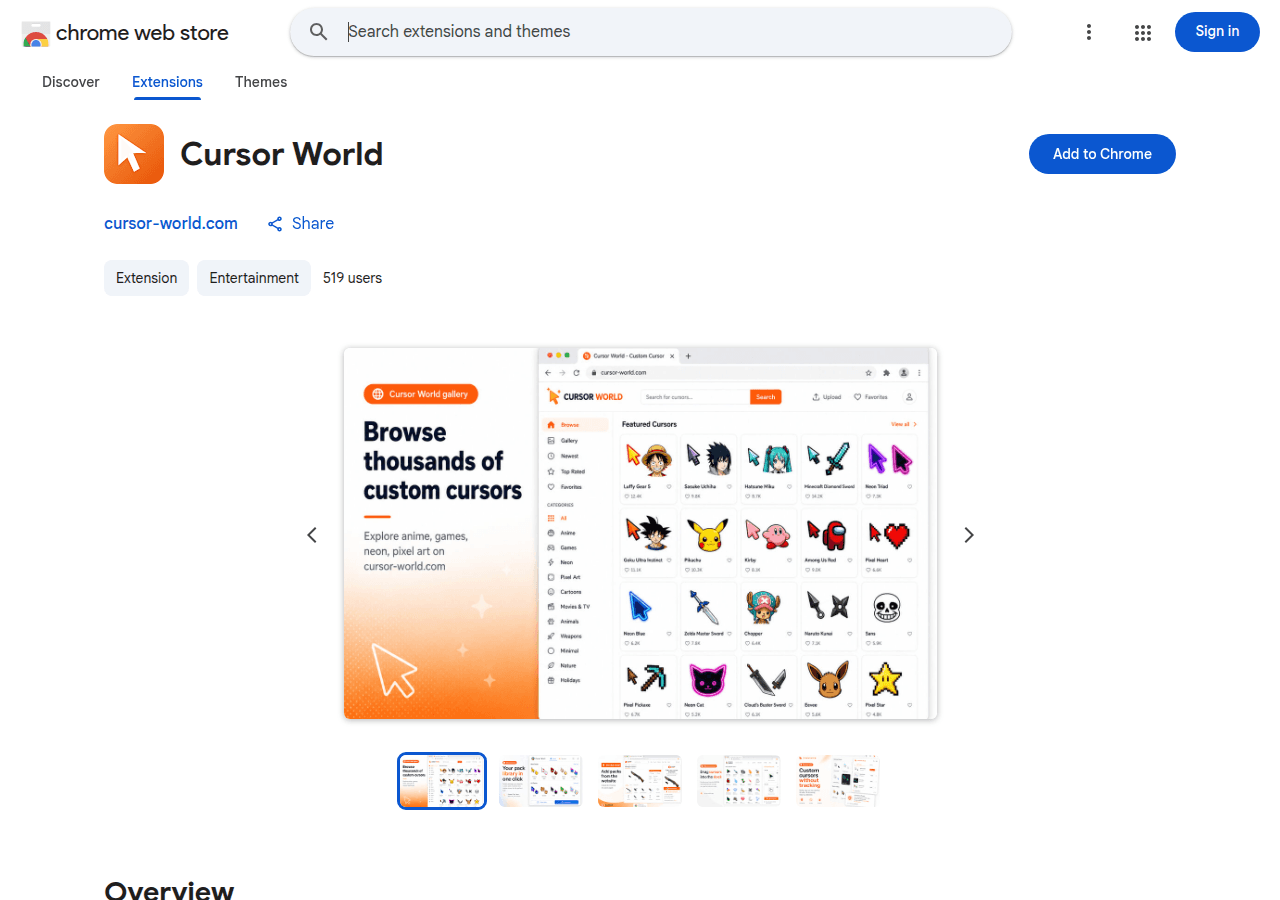
Do not confuse Cursor World with Custom Cursor World from item 8. This is a different extension with a separate ID and its own site, cursor-world.com.
The Chrome Web Store card lists capabilities such as:
- a built-in starter library;
- installing packs from cursor-world.com with one click;
- saving favorites;
- fast switching between packs;
- size adjustment;
- enable and disable via the toolbar.
The developer also states that packs and settings are stored on the device, and that the extension does not show ads and does not collect browsing history.
14. Cursor Pixel - Crazy Things
Link: Cursor Pixel in the Chrome Web Store
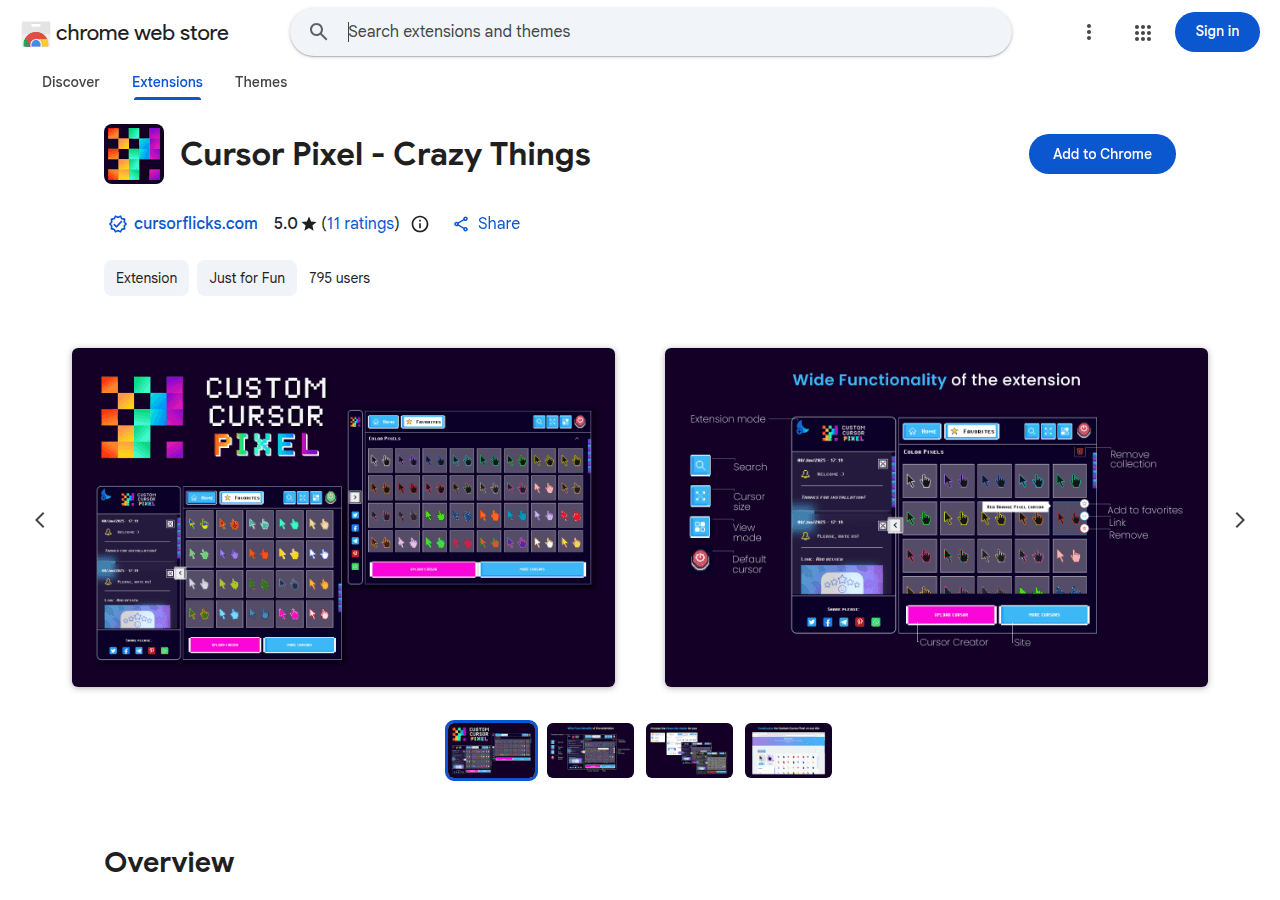
Fans of old video games and pixel graphics should look at Cursor Pixel.
The extension offers a collection of cursors in a pixel-art style. The Chrome Web Store mentions:
- minimalist pixel designs;
- retro styles;
- creative options;
- gaming motifs.
The main idea is to replace the default arrow with a pixel cursor that recalls the graphics of classic games.
This is not a universal catalog of every possible theme, but a more specialized option for anyone who specifically likes pixel art.
15. Softtrail - Custom Cursor for Chrome
Link: Softtrail in the Chrome Web Store
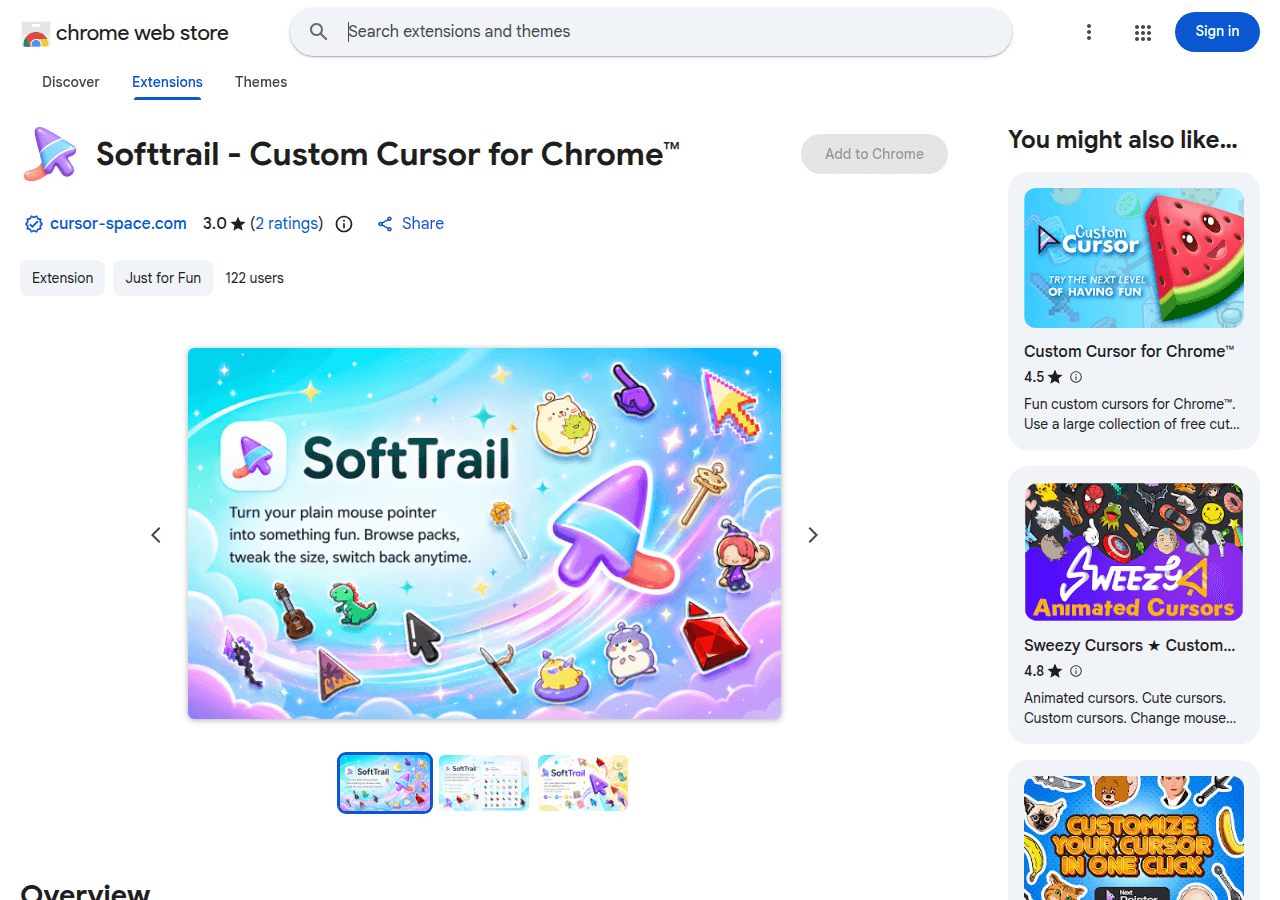
Softtrail is an extension connected with the cursor-space.com site.
Its main purpose is to replace the default cursor with one of the ready-made designs.
The Chrome Web Store lists:
- a gallery of custom cursors;
- cute and minimalist designs;
- gaming packs;
- search and catalog browsing;
- size settings;
- fast apply on web pages;
- return to the default cursor.
This is an option for anyone who wants to pick a new design quickly without spending time on complex settings.
16. Texture Cursors - Custom Cursors
Link: Texture Cursors in the Chrome Web Store
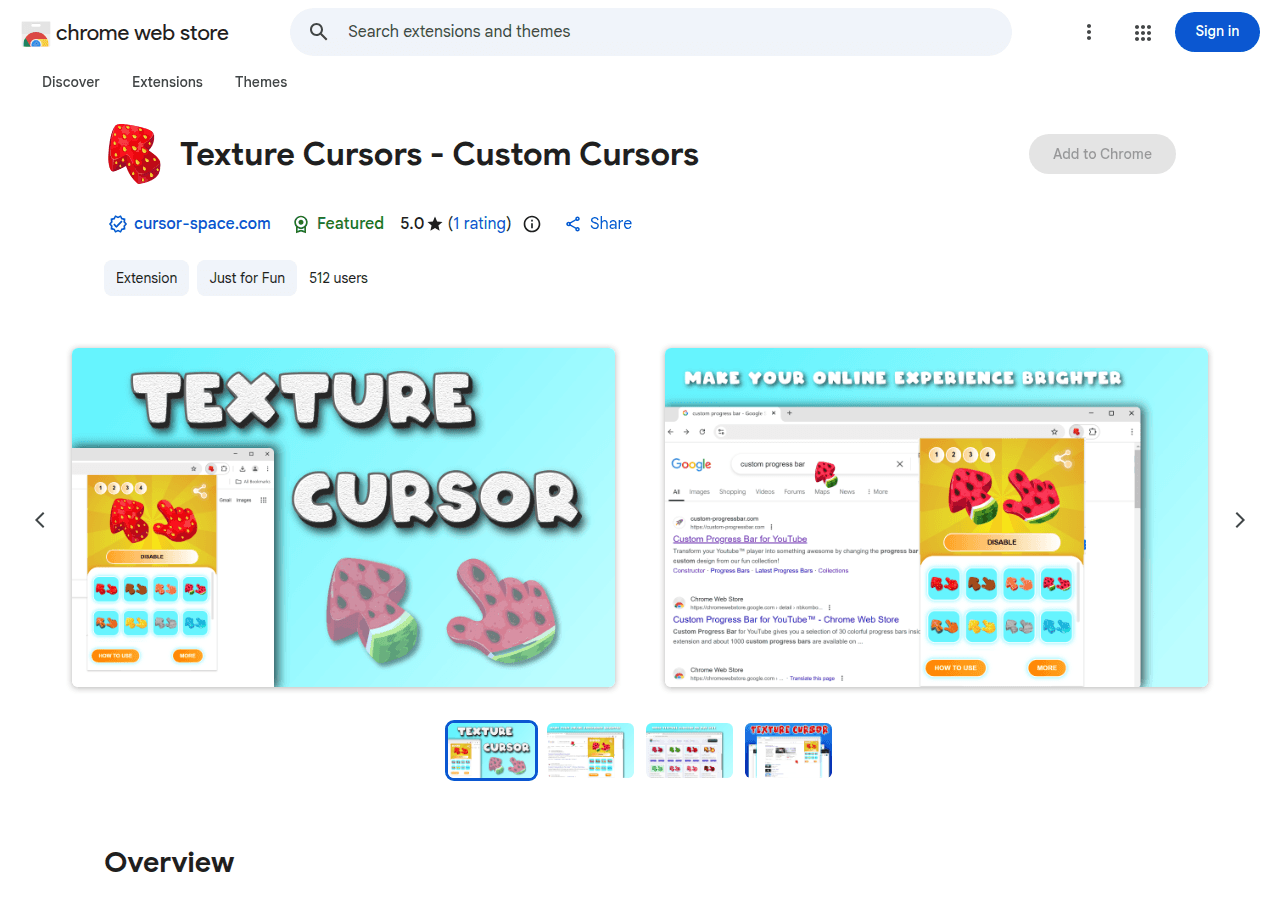
This is another extension from the cursor-space.com site, but it should not be confused with Texture Cursor from item 10.
In the Chrome Web Store it is described as an additional collection of ten cursors with different textures.
The main focus is an unusual pointer look and the ability to personalize the browser with ready-made designs.
If you like materials, textures, and non-standard shapes, this option is worth reviewing together with Texture Cursor.
Comparison of all 16 alternatives
So you do not have to open each extension separately, here is a short comparison of their main capabilities.
| Extension | Main feature |
|---|---|
| Cursor Helper | Large themed library |
| Cursor Custom | Simple packs and size settings |
| Custom Cursor & Cursor Trails | Cursor, trail, and click effects |
| Custom Cursor Pro | Animated designs, Creator, and Constructor |
| Custom Cursor App | Anime, cute, and gaming cursors |
| Navix Cursors | Themed packs and custom images |
| Cursoria | Search, favorites, hotkeys, and site lists |
| Custom Cursor World | Free themed designs |
| Cursor Space | Static and animated cursors plus your own design |
| Texture Cursor | Wood, metal, glass, fire, and ice |
| Awesome Cursors | Over 100 designs and custom images |
| Cursorly | Simple switching and size changes |
| Cursor World | Starter library, favorites, and fast switching |
| Cursor Pixel | Pixel and retro graphics |
| Softtrail | Gallery of ready-made designs and size controls |
| Texture Cursors | Extra textured packs |
Which extension to choose for school?
If the administration allows installing specific extensions for browser personalization, you can choose based on the kind of cursor you want.
- For a large library: Cursor Helper or Navix Cursors.
- For cute characters and cartoon designs: Custom Cursor App or Cursor World.
- For animated effects: Custom Cursor Pro or Custom Cursor & Cursor Trails.
- For your own images: Awesome Cursors or Navix Cursors.
- For textured cursors: Texture Cursor or Texture Cursors.
- For pixel graphics: Cursor Pixel.
- For simple switching between designs: Cursor Custom or Cursorly.
- For advanced settings: Cursoria.
These are recommendations based on features described by developers in the Chrome Web Store, not a guarantee that a specific extension will be allowed on a school device.
What to do if every extension is blocked?
If Chrome shows a message about an administrator restriction, do not try to bypass school rules through third-party sites, other accounts, or downloading extension files from unknown sources.
There are a few normal options:
- Ask a teacher or administrator. You can explain that the extension is only used for cursor personalization and ask them to allow a specific product.
- Send a link to the extension. The administrator can review its description, developer, and permissions.
- Use your own device. On a personal computer where you can manage Chrome settings yourself, you can install allowed extensions.
- Leave the default cursor on the school computer. If the school forbids third-party extensions, it is better to follow the established rules.
Google also provides a mode where users can send administrators requests to install the extensions they need. More detail: Extension workflows - Let users request extensions.
Important limits of custom cursors
Even if an extension installs successfully, do not expect it to change the cursor absolutely everywhere.
Chrome limits how extensions work on some system pages. For example, in the Chrome Web Store, internal browser settings, and certain special pages, a custom cursor may not appear.
Some extensions also recommend refreshing tabs after installation so the changes start working.
Another important point - Chrome extensions usually change the cursor on web pages. That does not mean they replace the Windows system cursor in every app and on the desktop.
Before installing, read the description, check permissions, and review the privacy information in the Chrome Web Store.
Conclusion: Custom Cursor was blocked - what are the alternatives?
If school blocked Custom Cursor, that does not mean every cursor personalization option is gone. There are many other extensions with their own libraries and features.
Among the most interesting options are Cursor Helper with a large themed library, Cursoria with advanced settings, Custom Cursor & Cursor Trails with animated trails, Awesome Cursors with custom image uploads, and Texture Cursor with unusual materials.
For fans of retro graphics there is Cursor Pixel, for anyone who likes cute characters - Custom Cursor App and Cursor World, and for simple switching between designs - Cursor Custom and Cursorly.
Still, the main rule stays the same: if the school has forbidden third-party extensions, a different name does not make them automatically allowed. First check the school rules or ask an administrator to approve the tool you need.
And if you use your own computer and have the right to install extensions, you can review all of the options above in the official Chrome Web Store.